
How to Install Linux: A Complete Beginner’s Guide
Installing Linux is one of the best ways to take control of your computer, revive an old laptop, learn a more flexible operating system, or replace a version of Windows you no longer want to use. The good news is that you do not need to be a developer to install Linux. With the right preparation, a USB drive, and a clear understanding of your installation options, most beginners can install Linux safely.
The most important step is not clicking the Install button. It is choosing the right installation method before you touch your hard drive. You can install Linux as your only operating system, install it next to Windows in a dual boot setup, test it from a live USB, run it inside a virtual machine, or install a Linux environment directly inside Windows with WSL. Microsoft describes Windows Subsystem for Linux as a way to install Linux on Windows with the wsl --install command, which is useful if you need Linux commands without replacing Windows.
This guide explains how to install Linux safely, step by step. You will learn what Linux installation means, which method to choose, what you need before starting, which Linux distribution is best for beginners, and how to avoid the most common mistakes that can lead to data loss.
Quick answer: how do you install Linux?
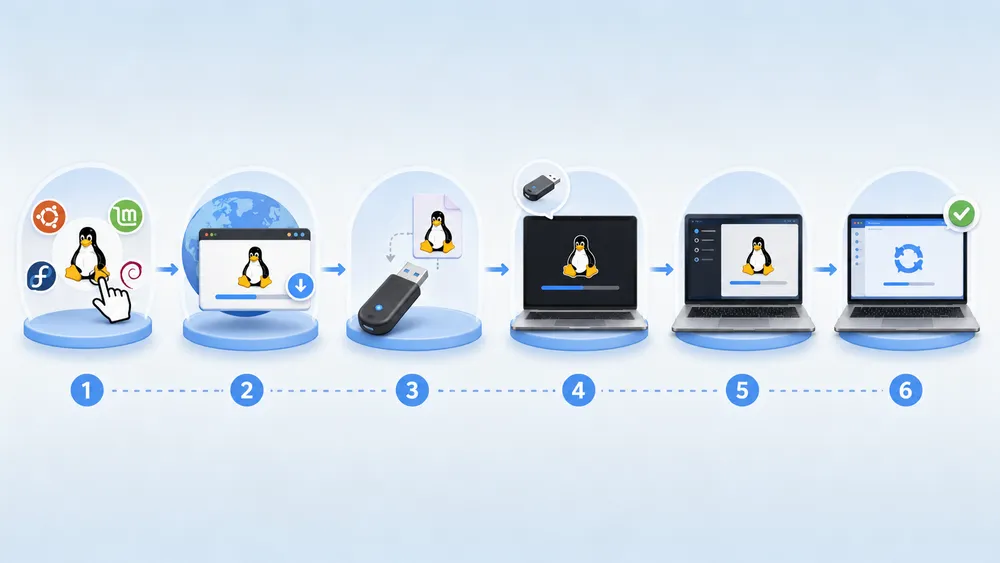
To install Linux, download a Linux ISO file, create a bootable USB drive, restart your computer from that USB drive, choose whether to try Linux or install it, then follow the installer. Before installing, back up your files and decide whether you want to replace your current operating system, install Linux next to Windows, or test Linux without changing your computer.
At a high level, the process looks like this:
- Choose a Linux distribution, such as Ubuntu, Linux Mint, Fedora, or Debian.
- Download the official ISO image from the distribution’s website.
- Use a tool such as balenaEtcher, Rufus, or Fedora Media Writer to create a bootable USB drive.
- Restart your computer and boot from the USB drive.
- Try Linux first to check hardware compatibility.
- Launch the installer.
- Choose between erase disk, install alongside Windows, or manual partitioning.
- Complete the setup, restart, and update your new Linux system.
Ubuntu’s official desktop download page summarizes the basic installation flow in a similar way: download the ISO image, create a bootable USB flash drive with an image writer, then boot the computer from the USB flash drive.
For most beginners, the safest path is to start with a live USB. A live USB lets you run Linux from a flash drive before installing anything on your internal storage. This helps you test your keyboard, trackpad, Wi-Fi, display, sound, Bluetooth, and graphics before making permanent changes.
If your goal is to learn Linux commands or use developer tools, you may not need a full installation at all. On Windows, WSL can be the easiest option because it lets you run a Linux environment inside Windows. If your goal is to replace Windows, revive an old PC, or use Linux as your daily desktop, a full Linux installation or dual boot setup makes more sense.
Why use Linux? Main benefits of the Linux operating system
The main benefits of Linux are cost, control, customization, privacy, developer tools, and the ability to run well on many types of hardware. Linux is also a strong choice for users who want an open-source operating system, long-term stability, and an alternative to Windows or macOS.
Most desktop Linux distributions are free to download
One of the biggest advantages of Linux is that most desktop Linux distributions are free to download, install, and use. You do not need to buy a license key to install popular distributions such as Ubuntu, Linux Mint, Fedora, or Debian.
This makes Linux especially attractive for students, developers, small businesses, and users who want to revive an older computer without paying for a new operating system.
Open-source transparency
Another major advantage is open-source transparency. The Linux kernel is distributed under the GNU General Public License version 2, which means its source code is available under open-source licensing rules.
This does not mean every Linux app is automatically open source, but the core operating system ecosystem is built around software that can be inspected, studied, modified, and redistributed under specific license terms.
More control than most mainstream operating systems
Linux also gives users more control than most mainstream operating systems. You can choose the desktop environment, package manager, update behavior, file system, window manager, privacy settings, and even the level of system complexity you want.
A beginner can use a polished desktop like Ubuntu, Linux Mint, Fedora Workstation, or Zorin OS, while advanced users can build a highly customized setup.
Useful for older computers
Linux is also useful for older computers. Some distributions have lower system requirements than modern commercial operating systems. For example, Linux Mint lists 2 GB RAM as the minimum, 4 GB RAM as recommended for comfortable use, 20 GB of disk space as the minimum, and 100 GB as recommended. This makes Linux Mint a practical option for many older laptops that feel slow on newer versions of Windows.
For long-term use, Linux can also be a good choice because several distributions offer predictable release cycles and extended maintenance windows. Ubuntu LTS releases, for example, are released every two years and receive 5 years of standard security maintenance, which makes them a good option for users who value stability over constant feature changes.
Powerful for developers, system administrators, cybersecurity learners
Linux is especially powerful for developers, system administrators, cybersecurity learners, and technical users. Many programming languages, servers, containers, cloud tools, and DevOps workflows are built around Linux. Even Microsoft supports Linux workflows through WSL, but installing Linux directly gives users the full desktop and system experience.
Software flexibility
Another benefit is software flexibility. Linux users can install software from official repositories, app stores, Flatpak, Snap, AppImage, source code, and vendor packages, depending on the distribution. This gives more freedom, but it also means beginners should learn the safest way to install apps on their chosen distribution instead of copying random terminal commands from forums.
Linux is not perfect. Some professional apps, games, printer tools, or hardware utilities may work better on Windows or macOS. But for users who mainly browse the web, write documents, code, manage files, learn technology, or use open-source tools, Linux can be a fast, secure, customizable, and cost-effective operating system.
For most beginners, the best way to benefit from Linux is to start with a user-friendly distribution such as Ubuntu or Linux Mint, test it with a live USB, and install it only after checking that Wi-Fi, sound, display, keyboard, and touchpad work correctly.
Before you start: choose the safest way to install Linux
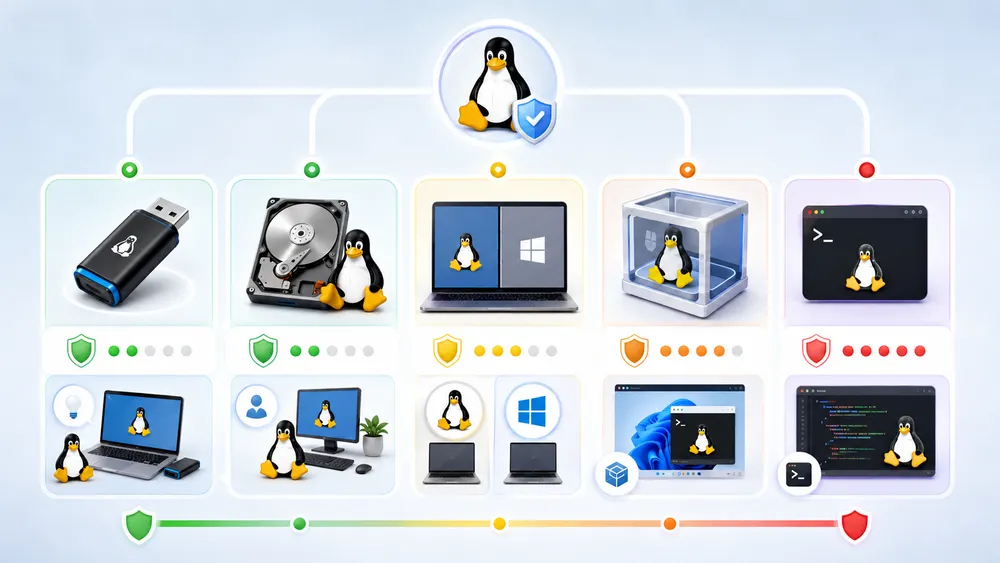
The safest way to install Linux depends on what you want to do. Use a live USB to test Linux without changing your computer, a virtual machine to practice safely, WSL to run Linux inside Windows, dual boot to keep Windows and Linux, or a full install if you want Linux to replace your current operating system.
In reality, there are several ways to install or run Linux, and each one has a different level of risk.
The best method depends on three questions:
- Do you want to keep your current operating system?
- Do you want Linux to run at full speed on your hardware?
- Are you comfortable changing disk partitions?
If you are not sure, do not start with a full installation. Start with a live USB or a virtual machine. These methods let you explore Linux with much lower risk.
Option 1: Try Linux from a live USB
A live USB lets you start Linux from a flash drive without installing it on your internal drive. This is usually the best first step for beginners. You can test the interface, open the browser, connect to Wi-Fi, check the keyboard layout, and confirm that your screen resolution works correctly.
A live USB is not meant to be your permanent daily system, but it is excellent for testing. It also helps you answer a critical question before installation: does this Linux distribution work well with your hardware?
Choose this method if you want to try Linux safely, check compatibility, or show Linux to someone without modifying their computer.
Option 2: Install Linux as your only operating system
A full Linux installation replaces your current operating system. If your computer currently runs Windows or macOS, a full installation can erase that system and all files on the selected drive.
This method gives Linux full control of the computer. It usually delivers the best performance because Linux runs directly on the hardware. It is also simpler after installation because you do not need to manage two operating systems.
Choose this method if you are ready to use Linux as your main operating system, you have backed up your files, and you no longer need the current system on that computer.
Be careful: the installer option called Erase disk and install Linux does exactly what it says. It can delete Windows, installed apps, personal files, and existing partitions on the selected disk.
Option 3: Install Linux alongside Windows with dual boot
A dual boot setup lets you keep Windows and install Linux next to it. When you start the computer, you choose which operating system to load.
This is a popular option for users who want Linux but still need Windows for specific apps, games, work software, or school tools. It also makes sense if you are moving gradually from Windows to Linux.
Dual boot is powerful, but it is more complex than a full installation. You need free disk space, a correct boot mode, and careful partitioning. You should also understand how BitLocker, Secure Boot, and UEFI can affect the boot process.
Microsoft explains that Windows users may be prompted for a BitLocker recovery key in some recovery scenarios, and users should know how to find that key before they need it. Before attempting a dual boot installation on a Windows laptop, save your BitLocker recovery key and make a full backup.
Choose dual boot if you want Linux at full hardware speed but still need Windows on the same computer.
Option 4: Install Linux in a virtual machine
A virtual machine runs Linux inside a window on your current operating system. You can use tools such as VirtualBox, VMware Workstation, Parallels Desktop, or GNOME Boxes.
This is one of the safest ways to learn Linux because it does not require repartitioning your main drive. If something goes wrong, you can delete the virtual machine and start again.
The trade-off is performance. A virtual machine shares your computer’s CPU, memory, and storage with the host system. It is great for learning Linux, testing software, and following tutorials, but it may not be ideal for gaming, heavy video editing, or testing exact hardware compatibility.
Choose this method if you want to practice Linux installation safely before installing it on real hardware.
Option 5: Install Linux on Windows with WSL
WSL, or Windows Subsystem for Linux, lets you run a Linux environment directly inside Windows. This is not the same as replacing Windows with Linux. It is best for developers, students, system administrators, and users who want Linux commands, package managers, shells, and development tools without leaving Windows.
Microsoft’s official WSL documentation says you can install WSL using the command wsl --install, and new Linux installations installed with that command are set to WSL 2 by default.
Choose WSL if your goal is to learn the Linux terminal, run command-line tools, use Git, install development packages, or follow programming tutorials. Do not choose WSL if you want the full Linux desktop experience or want to replace Windows entirely.
What do you need to install Linux?
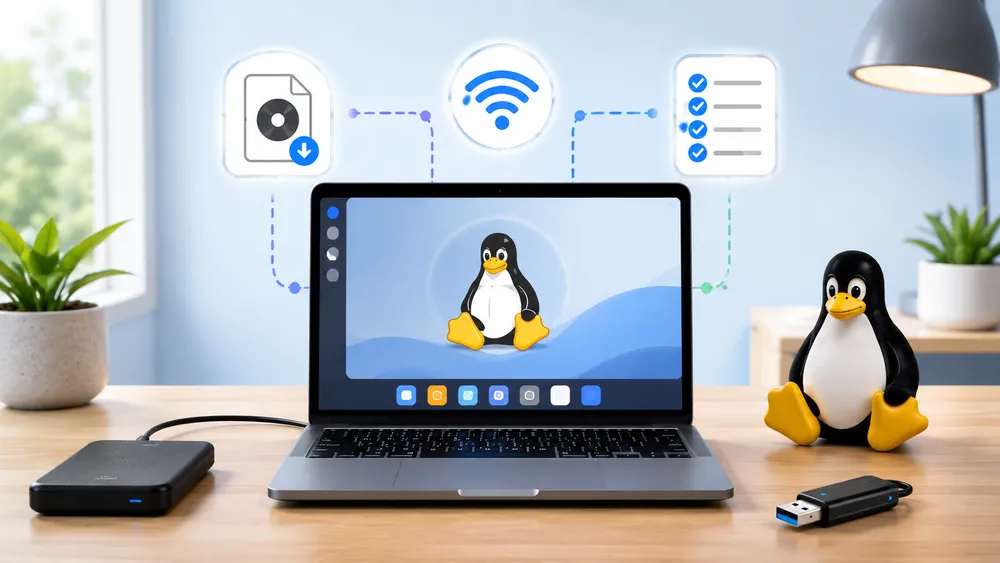
To install Linux, you need a compatible computer, a stable internet connection, a Linux ISO file, a USB flash drive, and a tool that can write the ISO to the USB. You also need a backup of your important files before changing partitions or replacing your current operating system.
The exact requirements depend on the distribution, but most modern Linux desktop systems need the same basic items.
- You need a computer that can boot from USB. Most laptops and desktops from the last decade can do this. You need a USB flash drive, usually 4 GB or larger for many distributions, although some official guides recommend more depending on the image and tool. Ubuntu’s guide for creating a bootable USB stick on Windows lists a 4 GB or larger USB stick as a requirement for that method.
- You need a Linux ISO file. An ISO file is a downloadable disk image that contains the Linux installer. You should download it only from the official website of the distribution you plan to install.
- You need an image writing tool. Do not simply copy the ISO file to the USB drive. A bootable USB must be written in a special way so the computer can start from it.
- You need a backup. This is not optional if you care about your files. Installing Linux can be safe when done correctly, but choosing the wrong disk or partition can erase data permanently.
- You may also need your BitLocker recovery key if your Windows drive is encrypted, your Wi-Fi password, your account passwords, and access to another device in case you need to search for troubleshooting steps during installation.
Minimum hardware requirements
The hardware requirements depend on the Linux distribution and desktop environment. A lightweight Linux desktop can run on older hardware, while a modern GNOME-based desktop usually needs more memory and storage.
Ubuntu’s current desktop download page lists these requirements for Ubuntu Desktop:
- a 2 GHz dual-core processor or better,
- 6 GB of system memory,
- 25 GB of free hard drive space,
- a USB port or DVD drive for the installer media,
- internet access as helpful.
Linux Mint lists lighter requirements: 2 GB RAM, with 4 GB recommended for comfortable usage, 20 GB of disk space, with 100 GB recommended, and a 1024×768 screen resolution.
As a practical recommendation, use this simple rule:
- For a modern laptop with 8 GB RAM or more, choose Ubuntu, Fedora, Linux Mint Cinnamon, or Zorin OS.
- For an older laptop with 4 GB RAM, choose Linux Mint Xfce, Xubuntu, or another lightweight desktop.
- For a very old computer with 2 GB RAM, choose a lightweight distribution carefully and avoid heavy desktop effects.
If your computer has an SSD instead of a hard drive, Linux will feel much faster. If your old laptop still uses a mechanical hard drive, replacing it with a low-cost SSD can improve performance more than changing the operating system alone.
USB drive and ISO file
A USB flash drive is the most common way to install Linux. The USB drive will be erased when you create the bootable installer, so do not use a drive that contains files you need.
Download the ISO file from the official website of your chosen Linux distribution. Avoid random download mirrors, unofficial repacks, modified ISOs, or files shared in forums. Official downloads reduce the risk of malware, corrupted images, or outdated installers.
For most beginners, the easiest path is:
- Download Ubuntu Desktop or Linux Mint.
- Use balenaEtcher or Rufus on Windows.
- Write the ISO to a USB drive.
- Restart the computer and boot from the USB drive.
- Test Linux before installing.
If you are using Fedora, the official Fedora site recommends Fedora Workstation as its desktop edition, described as a polished, easy-to-use operating system for laptop and desktop computers.
Backup checklist before installing Linux
Before you install Linux, back up anything you cannot afford to lose. Do not rely on memory. Use a checklist.
- Back up your Documents, Downloads, Desktop, Pictures, Videos, and Music folders.
- Export bookmarks from your browser or enable browser sync.
- Save passwords from your password manager.
- Save license keys for paid software.
- Save work files from apps such as Microsoft Office, Adobe apps, accounting software, or school software.
- Copy project files, code repositories, and local databases.
- Save your BitLocker recovery key if you use Windows device encryption.
- Create a Windows recovery drive if you may want to return to Windows later.
- Take photos of important settings, including Wi-Fi configuration or partition layout if needed.
If you plan to dual boot, also free up disk space from inside Windows before starting the Linux installer. It is usually safer to shrink the Windows partition from Windows Disk Management than to guess during installation.
Which Linux distribution should beginners install?
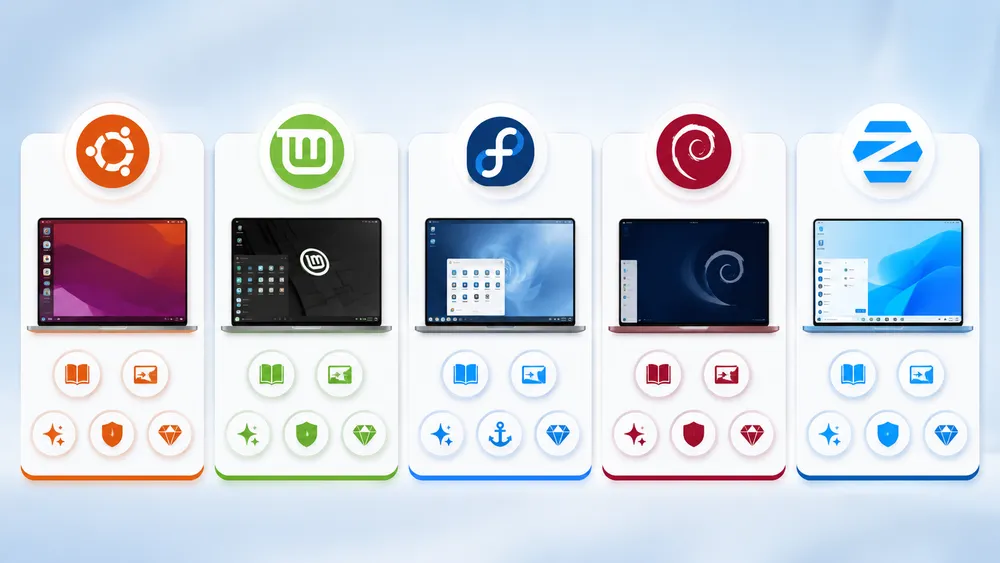
Most beginners should install Ubuntu or Linux Mint. Ubuntu has broad documentation, strong hardware support, and a large community. Linux Mint feels familiar to many Windows users and has lower listed system requirements. Fedora is a good choice for newer software, while Debian is better for users who value stability and do not mind a more traditional setup.
A Linux distribution, often called a distro, is a complete operating system built around the Linux kernel plus a package manager, desktop environment, default apps, system tools, and update system.
The Linux kernel is only the core. Most users install a distribution such as Ubuntu, Linux Mint, Fedora, Debian, Zorin OS, Pop!_OS, or openSUSE.
For a first installation, do not choose a distribution only because someone online says it is “the best.” Choose based on your hardware, experience level, and goal.
Ubuntu
Ubuntu is one of the easiest recommendations for beginners because it has extensive documentation, broad hardware support, predictable releases, and a very large community. Many tutorials assume Ubuntu, which makes troubleshooting easier.
Ubuntu is a strong choice if you want a modern Linux desktop, easy access to software, good documentation, and compatibility with many guides.
Choose Ubuntu if your computer has at least 6 GB of memory and you want the most widely documented beginner-friendly Linux option.
Linux Mint
Linux Mint is often the best choice for people coming from Windows. Its desktop layout feels familiar, with a panel, menu, system tray, and traditional window controls. It avoids some of the learning curve that new users may feel with Ubuntu’s GNOME desktop.
Linux Mint is also attractive for older PCs because its official FAQ lists 2 GB RAM minimum, 4 GB recommended, and 20 GB disk space, with 100 GB recommended for comfortable storage.
Choose Linux Mint if you want a comfortable desktop, a Windows-like experience, and a beginner-friendly system for an older laptop.
Fedora
Fedora Workstation is a polished Linux desktop with recent software and strong developer appeal. The Fedora Project describes Fedora Workstation as an easy-to-use operating system for laptop and desktop computers, with GNOME and tools for developers and makers.
Fedora is a good option if you want newer Linux technologies, a clean GNOME desktop, and a system that feels close to the future of Linux desktop development.
Choose Fedora if you are comfortable with slightly more frequent updates and want newer software than some long-term support distributions provide.
Debian
Debian is one of the most important Linux distributions. It is known for stability, a large software repository, and its role as the foundation for many other distributions, including Ubuntu.
Debian is excellent, but it is not always the simplest first choice for absolute beginners. The official Debian installation guide is detailed and technical, which is useful for experienced users but may feel less friendly than Ubuntu or Linux Mint for a first install. Debian’s current installation guide covers Debian GNU/Linux 13 for 64-bit PC architecture.
Choose Debian if you value stability, want a classic Linux experience, or already feel comfortable following technical documentation.
Zorin OS
Zorin OS is designed to feel familiar to users switching from Windows or macOS. It is often recommended for beginners because it offers a polished desktop and familiar layouts. It can be a good choice for users who want Linux to feel less intimidating.
Choose Zorin OS if your priority is a smooth visual transition from Windows and you want a beginner-friendly desktop experience.
Best beginner choice
For most readers, the simplest recommendation is this:
- Install Ubuntu if you want the most documented Linux desktop.
- Install Linux Mint if you are moving from Windows or using an older PC.
- Install Fedora if you want newer software and a polished GNOME experience.
- Install Debian if you want stability and do not mind a more technical setup.
- Install Zorin OS if you want a desktop that feels familiar immediately.
The safest beginner choice for this guide is Ubuntu or Linux Mint. They are popular, well documented, and easier to troubleshoot because many users have already solved the same problems you may encounter.
Linux vs Windows vs macOS vs ChromeOS: which operating system should you choose?
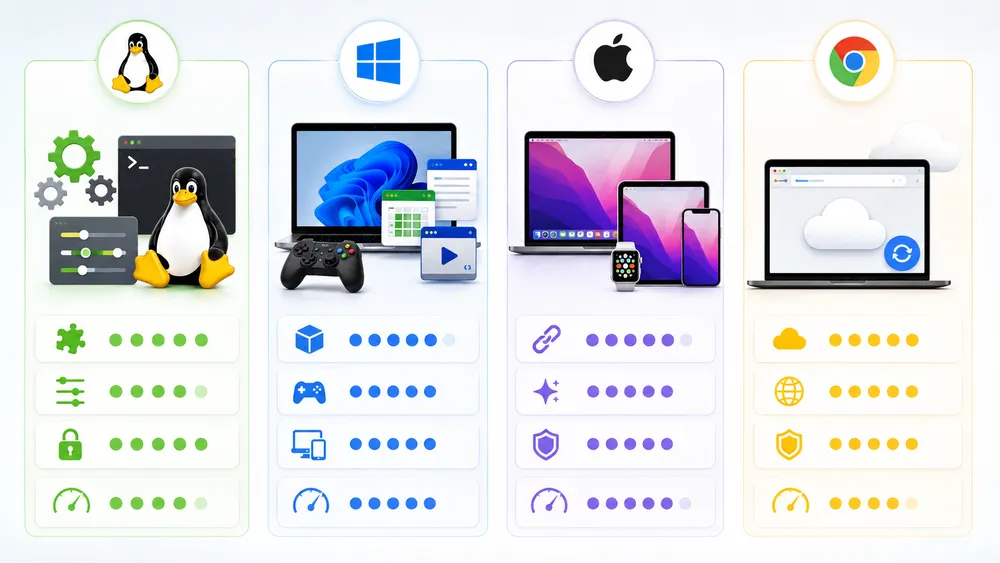
Before replacing your current system, it is worth comparing Linux with Windows, macOS, and ChromeOS so you know whether Linux actually matches your needs.
Choose Linux if you want a free, customizable, privacy-friendly operating system that can run well on many PCs. Choose Windows if you need maximum compatibility with commercial software, PC games, and business tools. Choose macOS if you use Apple hardware and want tight integration with iPhone, iPad, and Apple services. Choose ChromeOS if you mainly use web apps and want a simple, low-maintenance computer.
Before you install Linux, it helps to understand how it compares with the operating system you already know. Linux is not automatically better for everyone. It is better for users who value control, open-source software, customization, developer tools, and the ability to keep using hardware that may no longer be ideal for newer versions of Windows or macOS.
Windows is still the best choice for many gamers, office users, and people who depend on specific commercial software. Microsoft lists Windows 11 requirements such as a 1 GHz or faster processor with 2 or more cores, 4 GB RAM, 64 GB storage, UEFI Secure Boot, and TPM 2.0. That makes Windows 11 more restrictive on older PCs than many Linux distributions.
macOS is excellent if you own a compatible Mac, but it is not a general-purpose operating system you can install on most PCs. Apple states that macOS Tahoe 26 can be installed only on compatible Mac models, mostly Apple silicon Macs from 2020 or later, with limited Intel Mac compatibility.
ChromeOS is simple and secure, but it is designed mainly around the browser, Google services, Android apps, and cloud workflows. Google says Chromebooks receive 10 years of automatic updates, depending on device model and update schedule, which makes ChromeOS attractive for users who want low maintenance.
Here is a clear comparison:
| Operating system | Best for | Main strengths | Main limits | Can you install it on any PC? |
|---|---|---|---|---|
| Linux | Developers, privacy-conscious users, old PCs, open-source users, people replacing Windows | Free, customizable, open source, strong developer tools, many distributions, good for learning | Some commercial apps and games may not be available natively; hardware support depends on device | Yes, on most compatible PCs, depending on distribution and hardware |
| Windows 11 | Gaming, business software, Microsoft Office users, mainstream PC users | Best app compatibility, strong gaming support, wide hardware ecosystem, familiar interface | Requires compatible hardware, TPM 2.0, Secure Boot, more licensing restrictions | Only if the PC meets Windows 11 requirements |
| macOS | Mac users, Apple ecosystem users, creative professionals | Polished interface, strong Apple integration, good creative apps, stable hardware/software pairing | Only works officially on supported Macs; limited hardware upgrade flexibility | No, only supported Mac models |
| ChromeOS | Students, web-first users, simple family computers, cloud workflows | Simple, fast, secure, automatic updates, low maintenance | Limited for advanced desktop apps, gaming, local workflows, and professional software | No, mainly Chromebooks, though ChromeOS Flex can run on some PCs |
| WSL on Windows | Developers who need Linux tools without leaving Windows | Runs Linux command-line tools inside Windows, easy setup, no partitioning | Not a full replacement for a Linux desktop installation | Yes, on supported Windows systems |
Linux is especially attractive when a computer is still physically usable but no longer fits your preferred Windows or macOS path. For example, if your PC does not meet Windows 11 requirements, Linux may let you keep using the hardware with a modern operating system. However, the best choice still depends on your apps, your hardware, and your comfort level with troubleshooting.
Guide to install Linux in your computer
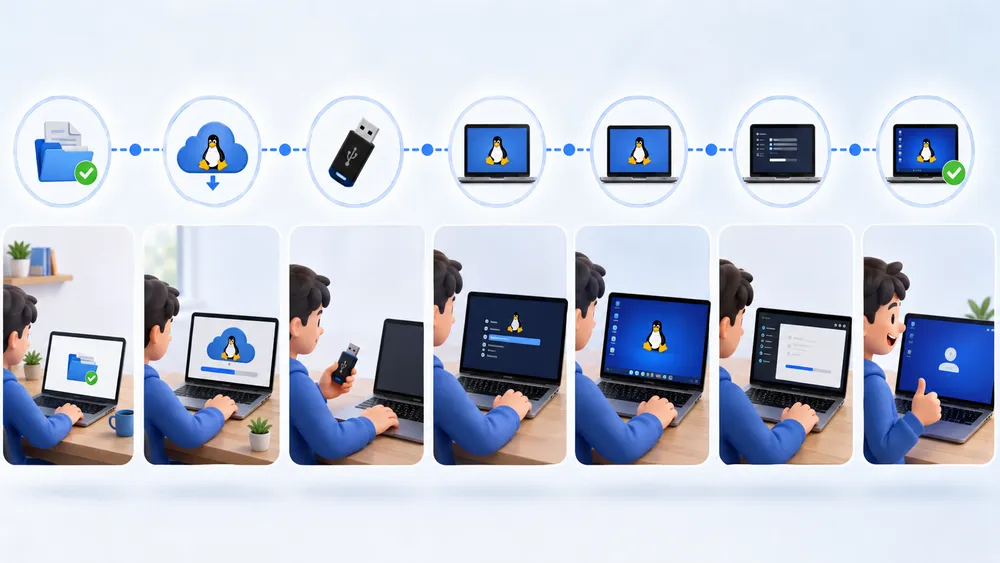
Step 1: Back up your computer
Before you install Linux, back up your important files, browser data, passwords, license keys, and recovery information. A Linux installation can be safe when done carefully, but choosing the wrong disk, partition, or installer option can erase your existing operating system and personal files.
Backing up your computer is the most important safety step in this entire guide. Do not skip it because the computer only has a few files or because you plan to choose Install alongside Windows. Installation mistakes usually happen when people are tired, rushing, or confused by disk names such as /dev/sda, /dev/nvme0n1, or Disk 0. A backup gives you a way to recover if you select the wrong option.
Start by copying your personal files to an external drive or cloud storage. Back up your Documents, Desktop, Downloads, Pictures, Videos, and any folders where you store work or school files. Also check app-specific folders. Some video editors, accounting tools, game launchers, note-taking apps, and coding tools save data outside your main Documents folder.
Next, protect your online accounts. Make sure your browser bookmarks are synced or exported. Confirm that your password manager is working and that you know your master password. Save two-factor authentication backup codes for important services. If you use local email software, export or sync your mail before installing Linux.
If your current computer runs Windows, check whether BitLocker or Device Encryption is enabled. Microsoft explains that a BitLocker recovery key is a 48-digit number needed when BitLocker cannot automatically unlock an encrypted drive, and that users may be prompted for it during startup after a security risk or hardware change. Before you change boot settings, install Linux, resize partitions, or attempt dual boot, make sure you know where that key is.
A good backup checklist looks like this:
Personal files: backed up
Photos and videos: backed up
Browser bookmarks: synced or exported
Passwords: saved in a password manager
Two-factor backup codes: saved
Software license keys: saved
Windows recovery key: saved
BitLocker recovery key: saved
Important project folders: backed up
External drive tested on another computer: yes
Do not treat a backup as complete until you test it. Open a few files from the external drive or cloud backup. Make sure photos actually display, documents open, and folders are not empty. A backup you have never tested is only a guess.
For a dual boot Linux installation, make one more preparation step: free disk space from inside Windows before booting into the Linux installer. Open Windows Disk Management, shrink the Windows partition, and leave unallocated space for Linux. This gives the Linux installer a cleaner target and reduces confusion.
For a full replacement installation, decide whether you want to keep a way back to Windows. If you might return to Windows later, create a Windows recovery drive or download the official recovery image from your PC manufacturer before erasing the system. Once you choose Erase disk and install Linux, recovery becomes much harder without installation media and a valid backup.
Step 2: Download a Linux ISO file
A Linux ISO file is the installer image used to create a bootable USB drive. Download the ISO only from the official website of your chosen distribution, such as Ubuntu, Linux Mint, Fedora, or Debian. Avoid unofficial mirrors, modified builds, and random download links from forums or video descriptions.
An ISO file is not an app installer that you double-click like a normal program. It is a disk image. You use it to create bootable installation media, usually a USB flash drive. Linux Mint’s official installation guide explains that Linux Mint comes as an ISO image that can be used to make a bootable DVD or bootable USB stick, then install Linux Mint on the computer.
For beginners, the easiest choice is usually Ubuntu Desktop or Linux Mint Cinnamon. Ubuntu is widely documented and easy to troubleshoot. Linux Mint feels familiar to many Windows users. The rest of this guide uses general steps that apply to most beginner-friendly Linux distributions, but the installer screens may look different depending on the distro.
Go to the official download page of your chosen distribution. Choose the stable desktop edition. For Ubuntu, most beginners should choose the current LTS desktop version unless they specifically need a newer non-LTS release. For Linux Mint, most beginners should choose the Cinnamon Edition unless they have older hardware, in which case Xfce may be more appropriate.
After downloading the ISO, save it somewhere easy to find, such as your Downloads folder. Do not download the ISO directly onto the USB drive you plan to erase. Ubuntu’s Rufus tutorial specifically reminds users to note where the browser saves downloads and not to download the ISO image directly to the USB stick.
For extra safety, verify the ISO if the distribution provides checksums or signature instructions. Verification confirms that the downloaded file is complete and has not been corrupted or tampered with. Linux Mint’s official installation guide includes a dedicated step to verify your ISO image, which is a strong trust signal for users who want a safer installation process.
In plain English, verification means comparing your downloaded file against a value published by the distribution. If the values match, the file is very likely the official image. If they do not match, delete the ISO and download it again from the official source.
For many beginners, ISO verification may feel technical. That is normal. At minimum, download from the official site, avoid third-party links, and make sure the file name matches the distribution and version you expected.
Step 3: Create a bootable Linux USB drive
To create a bootable Linux USB drive, use an image-writing tool such as balenaEtcher, Rufus, or Fedora Media Writer. Do not simply copy the ISO file to the flash drive. The USB must be written as bootable installation media, and the process will erase the selected USB drive.
This step turns your ISO file into a USB drive your computer can start from. The key detail is that a bootable USB is not created by dragging the ISO onto the flash drive. Ubuntu’s official installation tutorial states that writing the downloaded ISO to a USB stick is not the same as copying the ISO and requires special software.
You can create the USB from Windows, macOS, or another Linux computer. The exact tool is less important than selecting the correct ISO file and the correct USB drive.
On Windows, use Rufus or balenaEtcher. Rufus gives more control and is widely used. balenaEtcher is simpler and works across Windows, macOS, and Linux. Ubuntu’s older Rufus guide lists Rufus as a free and open-source USB writing tool and says the process requires a 4 GB or larger USB stick, Windows, Rufus, and an Ubuntu ISO file.
On macOS, use balenaEtcher for a simple graphical process. Download Etcher, select the ISO, select the USB drive, and flash the image.
On Linux, you can use balenaEtcher, GNOME Disks, Fedora Media Writer, or a command-line tool such as dd. Beginners should avoid dd unless they understand disk names clearly, because writing to the wrong device can overwrite another drive.
Before writing the USB, unplug extra external drives. This reduces the chance of selecting the wrong device. If you have one USB flash drive connected, the tool’s device list is less confusing.
The basic process is:
- Open the image-writing tool.
- Select the downloaded Linux ISO.
- Select the correct USB flash drive.
- Confirm that the USB contains no files you need.
- Start the writing process.
- Wait until the tool says the USB is ready.
- Safely eject the USB drive.
Read every warning carefully. Ubuntu’s Rufus guide notes that Rufus warns users that all data on the selected USB device is about to be destroyed, which is the moment to double-check that the correct device is selected.
Do not remove the USB drive while the image is being written. Interrupting the process can create a corrupted installer that fails to boot or crashes during installation.
When the tool finishes, your operating system may show a message saying the USB drive is unreadable or needs formatting. Do not format it. This can happen because the USB now contains Linux installation partitions that your current system may not display normally. Safely eject the drive and continue.
Step 4: Boot your computer from the USB drive
Short answer: To boot from the Linux USB drive, restart your computer and open the boot menu using a key such as F12, Esc, F2, F10, or Del, depending on the manufacturer. Select the USB drive, preferably the UEFI option, and wait for the Linux installer or live environment to load.
Once the bootable USB is ready, plug it into the computer where you want to install Linux. Shut the computer down completely, then turn it back on. Immediately press the boot menu key repeatedly until a boot device list appears.
Ubuntu’s official installation tutorial says a computer may recognize the installation media automatically, and if not, users can try holding F12 during startup. It also notes that Escape, F2, and F10 are common alternatives. Some PCs use Del to enter firmware settings rather than a one-time boot menu.
Common boot menu keys include:
Dell: F12
Lenovo: F12 or Enter, then F12
HP: Esc, then F9
Acer: F12
ASUS: Esc or F8
MSI: F11
Gigabyte desktop boards: F12
Many custom desktops: F8, F11, F12, or Del
These keys vary by model, so look for a message on the startup screen such as Press F12 for Boot Menu or Press Esc for Startup Options. If the computer starts Windows normally, restart and try again. Timing matters. Press the key immediately after powering on the device.
When the boot menu appears, choose the USB drive. If you see two entries for the same drive, choose the one labeled UEFI. Most modern systems use UEFI, and it is usually the correct choice for current Linux distributions.
If the USB drive does not appear, try these fixes:
- Use another USB port.
- Use a USB-A port instead of USB-C if available.
- Restart and open the firmware settings.
- Disable Fast Startup in Windows.
- Recreate the USB drive with another tool.
- Try another USB flash drive.
- Check whether the firmware allows USB boot.
- Use the official installation guide for your PC brand.
Some computers boot too quickly for the key press to register. In Windows, you can also access advanced startup options from Settings and restart into firmware or boot options. Microsoft documents Windows startup settings as a way to change startup behavior and access recovery-related boot options.
Secure Boot and UEFI basics
Secure Boot is a firmware security feature designed to help ensure that the system starts trusted boot software. Many popular Linux distributions support Secure Boot, but problems can still occur with some hardware, graphics drivers, or custom distributions.
Do not disable Secure Boot as your first move unless the official guide for your distribution or hardware requires it. Try booting normally first. If the USB does not boot, search for your exact distribution name plus your laptop model and Secure Boot. For example: Ubuntu Dell XPS Secure Boot USB not booting.
UEFI is the modern firmware interface that replaced older BIOS systems. Most recent computers boot in UEFI mode. For a clean installation, keep boot mode consistent. If Windows is installed in UEFI mode, install Linux in UEFI mode too. Mixing legacy BIOS and UEFI can create bootloader problems, especially in dual boot setups.
BitLocker warning before booting Linux
If your Windows drive uses BitLocker, save the recovery key before booting from USB or changing boot settings. Microsoft states that a BitLocker recovery key may be needed when the encrypted drive cannot automatically unlock, and Microsoft Support cannot retrieve, provide, or recreate a lost recovery key.
This matters because changing startup behavior, firmware settings, boot order, or partitions can trigger a recovery prompt on some systems. Without the key, you could be locked out of the Windows installation.
Before continuing, confirm:
BitLocker recovery key saved: yes
Important files backed up: yes
Windows account password known: yes
USB installer created successfully: yes
Laptop plugged into power: yes
Step 5: Try Linux before installing it
Most beginner-friendly Linux distributions let you try Linux before installing. This starts a temporary Linux desktop from the USB drive without changing your internal drive. Use this mode to test Wi-Fi, keyboard, display, sound, touchpad, Bluetooth, webcam, sleep mode, and overall performance before clicking Install.
When the Linux USB starts, you may see a menu with options such as Try Ubuntu, Install Ubuntu, Start Linux Mint, or Try or Install. Choose the option that lets you test the desktop first.
Ubuntu’s official installation tutorial says the installer offers a choice to try or install Ubuntu, and that choosing Try Ubuntu lets users preview Ubuntu without making changes to the PC. This is one of the most useful beginner-friendly features of Linux installation media.
Spend at least 10 to 15 minutes testing your hardware. Do not rush into installation just because the desktop appears. A system can boot successfully but still have issues with Wi-Fi, Bluetooth, graphics acceleration, screen brightness, suspend mode, or audio.
Use this checklist:
Wi-Fi connects successfully
Keyboard layout is correct
Touchpad or mouse works
Display resolution is correct
Sound works
Brightness keys work
Bluetooth works if needed
Webcam works if needed
Laptop sleeps and wakes correctly
External monitor works if needed
Battery indicator appears
Installer opens correctly
Open the browser and visit a few websites. Connect to Wi-Fi and test the connection for a few minutes. Open system settings and check the display resolution. Play a short audio or video file if available. Try the function keys for brightness and volume. If you use an external monitor, plug it in now.
If you have an NVIDIA graphics card, pay extra attention to the display. Some Linux systems work best after installing proprietary NVIDIA drivers. Ubuntu’s installer includes an option to install third-party software that may improve device support and performance, including NVIDIA graphics drivers.
If Wi-Fi does not work in the live environment, do not panic. Some Wi-Fi chips require extra drivers. You may still be able to install Linux using Ethernet, USB tethering from a phone, or a temporary USB Wi-Fi adapter. However, beginners should avoid installing blindly if the computer depends entirely on Wi-Fi and they have no backup connection.
If the screen is black, flickering, or stuck, restart and check the boot menu for a safe graphics option. Some distributions provide options such as safe graphics, nomodeset, or compatibility mode. This is especially relevant for certain NVIDIA systems or unusual laptop displays.
If everything works, you are ready for the real installation phase. At this point, you have already completed the riskiest preparation steps: you backed up your files, downloaded the ISO from an official source, created a proper bootable USB, booted from it, and tested Linux before making permanent changes.
Before you continue, decide one last time which path you want:
- Choose Erase disk and install Linux if you want Linux to replace the current operating system.
- Choose Install alongside Windows if you want a dual boot setup.
- Choose Manual partitioning only if you understand partitions or are following a precise plan.
- Choose Try Linux again if you are not ready.
Step 6: Install Linux on your computer
To install Linux, open the installer from the live USB, choose your language, keyboard layout, network, installation type, user account, time zone, and disk option. The most important choice is the installation type: erase disk, install alongside Windows, or manual partitioning.
Once you are ready to install, open the installer from the live environment. On Ubuntu, the official installer flow includes choosing your language, accessibility settings, keyboard layout, network connection, whether to try or install Ubuntu, the installation setup, installation type, login details, location, and final confirmation before installation begins.
The exact screens vary by distribution, but the same logic applies to Ubuntu, Linux Mint, Fedora, Debian, Zorin OS, and most beginner-friendly Linux systems.
Start by choosing your language and keyboard layout. If your keyboard uses a US layout, choose English (US). If you use another layout, test special characters before continuing. This matters because you will create a password later, and a wrong keyboard layout can make login confusing.
Next, connect to Wi-Fi or Ethernet if possible. An internet connection lets the installer download updates, language packs, hardware support, and sometimes third-party drivers. Ubuntu’s installer, for example, can connect to the network and download updates or third-party drivers such as NVIDIA graphics drivers during installation.
When the installer asks about the installation type, slow down. This is the most important screen in the entire process.
- Choose Erase disk and install Linux only if you want Linux to replace the current operating system. This option is simple, but destructive. Ubuntu’s official tutorial explains that the erase disk option makes Ubuntu take up the entire disk space on the selected drive. It also warns users with multiple drives to make sure they select the correct one.
- Choose Install alongside Windows if you want a dual boot setup. This option keeps Windows and adds Linux to the same computer. On startup, you choose which operating system to use. Ubuntu’s installer can offer an option to install alongside another operating system rather than replacing it, when another OS is detected.
- Choose Manual partitioning only if you understand partitions. Manual partitioning gives you full control, but it also makes mistakes easier. Ubuntu describes manual partitioning as designed for advanced users with specific configurations.
For most beginners, the best choices are:
Use Erase disk only if the computer is fully backed up and you want Linux only.
Use Install alongside Windows if you need both Windows and Linux.
Avoid Manual partitioning unless you know exactly what you are doing.
If BitLocker is enabled on Windows, be extra careful before dual booting. Ubuntu’s tutorial explains that when BitLocker is enabled, the installer may not be able to safely map the Windows drive structure for installing Ubuntu alongside Windows. Microsoft also states that changing boot order can trigger a BitLocker recovery key prompt because boot order affects the system measurement verified by BitLocker.
After choosing the installation type, create your user account. Use a strong password you can remember. Do not leave automatic login enabled on a laptop you carry outside your home. If you choose full-disk encryption, save the encryption passphrase somewhere safe. If you lose it, you may not be able to recover your data.
Finally, review the installer summary. Check the selected disk, installation type, username, location, and keyboard layout. Once you click the final Install button, the installer will begin copying files and applying changes to the disk.
When installation finishes, restart the computer. Remove the USB drive when prompted. On Ubuntu, the installer asks users to restart, remove the USB flash drive, and press Enter before booting into the installed system.
Step 7: Complete the first setup after installation
After installing Linux, log in, connect to the internet, run system updates, check drivers, test sound, Wi-Fi, Bluetooth, display settings, and install essential apps. A fresh Linux installation is not finished until updates and hardware checks are complete.
After the restart, you should see the login screen for your new Linux system. Enter the password you created during installation. If the system boots into Windows instead, do not panic. This can happen with dual boot setups. You may need to open the UEFI boot menu and select the Linux bootloader, often called Ubuntu, Fedora, or GRUB.
Once logged in, connect to the internet and update the system. Ubuntu’s official tutorial recommends updating after a fresh install and shows both the Software Updater method and terminal commands such as sudo apt update and sudo apt upgrade.
On Ubuntu or Linux Mint, you can usually update with:
sudo apt update
sudo apt upgrade
On Fedora, use:
sudo dnf upgrade
After updating, restart if the system asks you to. Updates may include kernel patches, security fixes, drivers, firmware, and desktop improvements.
Next, check drivers. If you use an NVIDIA graphics card, open the driver manager or additional drivers tool provided by your distribution. Install the recommended proprietary driver if the distribution suggests it. If everything works well with the open-source driver, you may not need to change anything.
Then test the basics:
Wi-Fi works
Bluetooth works
Sound works
Microphone works
Webcam works
Display brightness works
External monitor works
Sleep and wake work
Touchpad gestures work
Printer works if needed
Install essential apps only after updates are complete. Most Linux distributions include a software store or app center. You can install browsers, office tools, media players, password managers, image editors, code editors, and communication apps from there.
How to install Linux on Windows without replacing Windows
You can install Linux on Windows without replacing Windows by using WSL or a virtual machine. Use WSL if you want Linux command-line tools inside Windows. Use a virtual machine if you want to test a full Linux desktop without changing your disk partitions.
If you are not ready to replace Windows or create a dual boot setup, there are two safer alternatives: WSL and virtual machines.
WSL is best for developers and students who need Linux tools inside Windows. Microsoft says WSL lets developers install a Linux distribution and use Linux applications, utilities, and Bash command-line tools directly on Windows without the overhead of a traditional virtual machine or dual boot setup.
To install WSL, open PowerShell as Administrator and run:
wsl --install
Microsoft’s documentation states that this command enables the features needed to run WSL and installs Ubuntu by default, although the default distribution can be changed. New Linux installations installed with wsl --install are set to WSL 2 by default.
A virtual machine is better if you want to see the full Linux desktop and practice the installation process. Install a VM app such as VirtualBox, create a new virtual machine, attach the Linux ISO, and install Linux inside the VM. This does not replace Windows and does not require disk partitioning.
Choose WSL for command-line Linux. Choose a virtual machine for safe desktop testing. Choose a real installation only when you want Linux to run directly on your hardware.
Common Linux installation problems and fixes
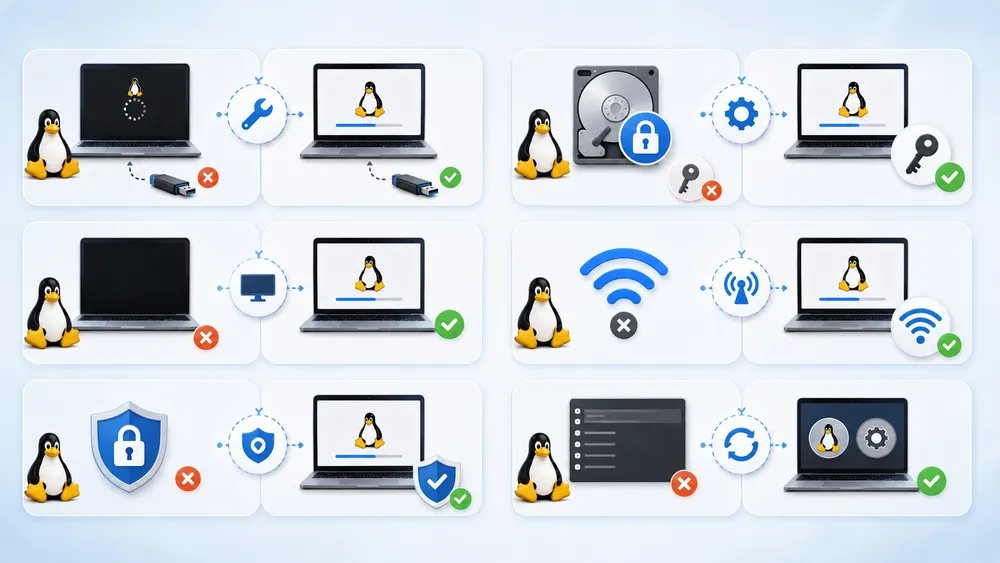
Common Linux installation problems include the USB not booting, BitLocker recovery prompts, black screens, missing Wi-Fi, wrong boot order, and GRUB not appearing. Most issues can be solved by checking UEFI settings, recreating the USB drive, saving recovery keys, using safe graphics, or updating the system after installation.
If the USB drive does not boot, recreate it with another tool, try another USB port, and choose the UEFI boot entry. Also check that you downloaded the correct ISO for your computer’s architecture. Most modern PCs use 64-bit x86.
If the computer shows a BitLocker recovery screen, enter your recovery key. Do not keep guessing. Microsoft explains that changing boot configuration settings or changing the BIOS/UEFI boot order can cause BitLocker recovery mode.
If you see a black screen, try the safe graphics option if your distribution provides one. This is common on some systems with NVIDIA graphics. After installation, install the recommended graphics driver from your distribution’s driver tool.
If Wi-Fi does not work, connect with Ethernet, USB tethering from a phone, or a temporary USB Wi-Fi adapter. Then run system updates and open the driver manager. Some wireless chips need additional firmware or drivers.
If GRUB does not appear after dual booting, open the UEFI boot menu and look for an entry named Ubuntu, Fedora, or your distribution name. If Linux starts from that entry, set it as the first boot option in firmware settings. If Windows starts directly every time, Windows Boot Manager may be first in the boot order.
If the installer cannot see the Windows drive, check for BitLocker, Intel RST, or RAID storage mode. Ubuntu’s installer documentation notes that some PCs using Intel RST are not supported until RST is disabled in BIOS settings. Do not change storage mode casually without a backup, because Windows may fail to boot if storage settings are changed incorrectly.
What to do after installing Linux
After installing Linux, update the system, install drivers, set up backups, install essential apps, enable browser sync, configure privacy settings, learn the software manager, and create a recovery plan. A good post-install setup makes Linux safer, faster, and easier to use every day.
Start with updates. Then install the apps you actually need. Avoid installing dozens of tools on day one. Learn how your distribution handles software first.
Set up automatic backups. Linux can be reliable, but no operating system protects you from accidental deletion, hardware failure, theft, or a bad update. Use an external drive, cloud sync, or a backup tool built for your desktop environment.
Install your preferred browser and enable sync if you use it. Add your password manager. Install office software such as LibreOffice if it is not already included. Add media codecs if your distribution offers them and you need MP3, video playback, or streaming support.
Learn your package manager. On Ubuntu and Linux Mint, software often comes from APT, Snap, Flatpak, or the software center. On Fedora, software may come from DNF, Flatpak, or GNOME Software. Do not paste random terminal commands from forums until you understand what they do.
Finally, keep the USB installer for a few days. If something goes wrong, it can help you boot into a live environment, recover files, repair boot issues, or reinstall.
FAQ
Can I install Linux for free?
Yes. Most popular Linux distributions are free to download and install. This includes Ubuntu, Linux Mint, Fedora, and Debian. Some projects also offer paid support, enterprise plans, or premium editions, but the desktop operating system itself is usually free for personal use.
Will installing Linux delete Windows?
It depends on the option you choose. Erase disk and install Linux can delete Windows and your files from the selected disk. Install alongside Windows creates a dual boot setup. Always back up your files before installing Linux.
Can I try Linux without installing it?
Yes. A live USB lets you run Linux from a USB drive without changing your internal disk. Ubuntu’s installer includes a Try Ubuntu option that previews the system without making changes to the PC.
What is the easiest Linux to install?
For most beginners, Ubuntu and Linux Mint are the easiest choices. Ubuntu is widely documented, while Linux Mint feels familiar to many Windows users. If you are unsure, start with one of those two.
Can I install Linux on Windows 11?
Yes. You can use WSL to run Linux command-line tools inside Windows 11, install Linux in a virtual machine, or create a dual boot setup. WSL is the simplest option if you do not need a full Linux desktop.
Do I need to disable Secure Boot?
Not always. Many modern Linux distributions support Secure Boot, but some hardware, drivers, or distributions may need extra steps. Try the default settings first, then check the official documentation for your distribution and computer model.
What should I do if Linux installation fails?
Do not immediately erase your disk again. Write down the error message, restart into the live USB, check your internet connection, verify the ISO, recreate the USB, and search the official documentation for your exact distribution and computer model.
Final checklist
Before you install Linux, confirm this checklist:
I chose the right Linux distribution.
I downloaded the ISO from the official website.
I backed up my personal files.
I saved my BitLocker recovery key if using Windows.
I created a bootable USB correctly.
I tested Linux in live USB mode.
Wi-Fi, keyboard, display, and sound work.
I understand the difference between erase disk and dual boot.
I reviewed the selected disk before clicking Install.
I know how to update the system after installation.
The best way to install Linux is not the fastest way. It is the safest way. Choose the right method, back up your data, test Linux from the USB drive, and read every installer screen before confirming disk changes.
For most beginners, the recommended path is simple: choose Ubuntu or Linux Mint, create a bootable USB, test the live desktop, then install Linux only after confirming your hardware works. If you are not ready to change your computer, use WSL or a virtual machine first.
