

Netlify reviewed after real deployments: pricing, limits and where it breaks
Netlify is a cloud platform that helps developers build, deploy, host and manage modern websites and web applications without having to configure traditional servers. In simple terms, Netlify connects your code to an automated deployment system: you push your project, Netlify builds it, publishes it online, and gives you tools such as preview URLs, serverless functions, forms, environment variables, domains, security features and team workflows.
For many developers, Netlify is one of the easiest ways to publish a static website, a React app, a portfolio, a landing page, a documentation site or a Jamstack project. It is also useful for more advanced projects because it supports serverless backend logic through Netlify Functions and newer full-stack features such as Netlify Database. Netlify describes its platform as an all-in-one system to build, deploy, manage, and extend modern web apps using Git, CI/CD, AI workflows, extensions and serverless architecture.
In this Netlify review guide, we explain what is this platform, what it is used for, how it works, whether Netlify is free, what Netlify Functions are, and when you should use Netlify instead of another platform like Vercel, Cloudflare Pages or GitHub Pages. It is written for beginners, developers, freelancers, founders, marketers and anyone who wants to understand the role Netlify plays in modern web development.
What is Netlify?

Netlify is a web development and hosting platform designed for modern frontend projects. It lets you deploy websites and web apps from a Git repository, from a local folder, from a zip-style project, or from certain AI code generation workflows. Instead of renting a server, configuring Nginx, setting up SSL manually and building your own deployment pipeline, you can use Netlify to automate most of the process.
The process is simple : Netlify turns your project files into a live website. You connect your project, choose a build command, select the folder that should be published, and Netlify handles the deployment. After that, every new push to your connected repository can trigger a new build and a new deployment.
Netlify is especially popular in the Jamstack ecosystem. Jamstack websites usually separate the frontend from the backend. The frontend is prebuilt into static files or optimized assets, while dynamic behavior is handled by APIs, serverless functions or external services. This architecture can make websites faster, easier to scale and simpler to maintain than traditional monolithic applications.
For example, a blog built with Astro, Hugo, Eleventy or Next.js can be deployed on Netlify. A React portfolio can be deployed on Netlify. A SaaS landing page can be deployed on Netlify. A documentation site can be deployed on Netlify. A frontend connected to Stripe, Supabase, Airtable, OpenAI or another API can also run on Netlify, as long as the architecture fits the platform.
Netlify is not only static hosting. That is an outdated way to describe it. Static hosting is still one of its strengths, but the platform also includes deploy previews, continuous deployment, functions, edge features, forms, environment variables, domain management, analytics, security features and full-stack building blocks. Netlify’s documentation now positions the platform around modern apps, Git, CI/CD, AI workflows and serverless architecture, not just basic static websites.
Is Netlify like web hosting?
The answer is yes, but only partially. Traditional web hosting gives you a server or shared hosting environment where your website files live. Netlify gives you a deployment workflow, a CDN-backed hosting layer and developer tools built specifically for modern web projects. It is closer to a web deployment platform than to a classic shared hosting provider.
What problem does Netlify solve?
Netlify solves the problem of getting modern web projects online quickly, safely and repeatedly. You can deploy a first version in minutes, share a preview URL with a client or teammate, roll back to a previous deploy when something breaks, and manage settings from one dashboard.
That is why Netlify is often used by developers who want speed and simplicity. It removes much of the infrastructure work from small and medium-sized frontend projects. You do not need to manage servers, SSL certificates, deployment scripts or CDN setup manually. You focus on the project, while Netlify handles the publishing workflow.
What is Netlify used for?

Netlify is used to deploy and host websites, frontend applications, Jamstack projects, landing pages, documentation, portfolios, prototypes and lightweight full-stack apps. It is a strong choice when you want to publish a project quickly, connect it to Git, preview changes before release, and add serverless functionality without managing backend infrastructure.
- The most common Netlify use case is publishing a static website. A static site is a website made of HTML, CSS, JavaScript and assets that can be served directly to visitors. Static sites can still be interactive. They can use JavaScript, APIs, forms, search tools, payments and third-party services. The word static mainly means the page files are generated before the user requests them, rather than being built dynamically by a server on every visit.
- Netlify is also used for frontend apps. A React app, Vue app, Svelte app, Astro site or Vite project can be built and deployed on Netlify. In this workflow, Netlify runs your build command, creates the production version of your app, and publishes the output folder.
- Another common use case is marketing websites. Startups and small businesses often need fast landing pages, product pages, documentation, changelogs and campaign pages. Netlify is useful here because marketing teams can preview changes, developers can ship updates quickly, and the website can run on a fast global delivery layer.
- Netlify is also popular for portfolios and personal websites. A developer can create a simple portfolio, connect a GitHub repository, and publish the site without paying for traditional hosting. Students, freelancers and junior developers often use Netlify because the deployment process is easier to understand than cloud infrastructure platforms like AWS.
- Documentation sites are another strong use case. Tools like Docusaurus, Astro Starlight, VitePress and MkDocs can generate fast documentation websites. Netlify can host the output and provide preview links for pull requests, which makes it easier for teams to review changes before publishing.
Netlify can also support serverless apps. With Netlify Functions, developers can write backend code that runs only when needed. This is useful for form processing, API requests, authentication callbacks, small automation tasks, webhooks, payment workflows and calls to third-party services. Netlify says Functions allow developers to build full-stack applications without managing servers, and that functions are deployed with the rest of the site.
For example, a frontend app may need to call a private API key. You should not expose that key in browser-side JavaScript. With Netlify, you can create a Function that receives a request from the frontend, calls the third-party API securely from the server side, and returns only the safe result to the browser.
Netlify is also used for fast prototyping. A developer can build an app locally, drag the output folder into Netlify Drop, and get a shareable URL. This is useful for quick demos, client feedback, hackathons and AI-generated website prototypes. Netlify’s deploy wizard supports different starting points, including code in an AI code generation tool, a repository, a computer folder or a zip-style project.
In short, Netlify is used when the goal is to ship web projects faster. It is not the right tool for every application, but it is one of the most practical choices for modern frontend-first projects.
Static websites and portfolios
Static websites are one of the best beginner-friendly use cases for Netlify. A static website can be a portfolio, résumé, blog, agency landing page, small business website, event page or documentation site. Because the files are already built, they can be served quickly and do not require a traditional backend server.
For a portfolio, Netlify is attractive because the workflow is simple. You create your project, push it to GitHub or upload it manually, and Netlify gives you a live URL. You can also connect a custom domain, add HTTPS, and update the site every time your code changes.
This makes Netlify useful for students and freelancers. Instead of spending time learning server administration before publishing a project, they can focus on the work they want to showcase. A portfolio is also a low-risk project for learning Netlify because the requirements are usually simple: a few pages, images, links, maybe a contact form and basic analytics.
Netlify is also a strong fit for blogs generated by static site generators. Tools like Hugo, Eleventy and Astro can generate HTML pages from Markdown or content files. Netlify can then build and publish the final site. This setup is common because it combines developer control with good performance.
The main limitation is that a static website does not automatically include everything a dynamic CMS or backend application provides. For comments, search, payments, authentication or admin dashboards, you may need external services or serverless logic. That is not a weakness of Netlify itself; it is simply the trade-off of using a frontend-first architecture.
React, Vue, Astro and frontend apps
Netlify is frequently used to deploy React apps and other frontend framework projects. A typical React app has a development version and a production build. During deployment, Netlify runs the build command, creates optimized production files, and publishes the build output.
For a Vite React app, the build command is often npm run build, and the publish directory is often dist. For older Create React App projects, the publish directory is usually build. These settings depend on the framework and build tool, so they should always be checked before deployment.
Netlify has official resources for deploying React apps and says it makes React deployment easy. Its documentation also includes framework setup guidance and notes that Netlify can automatically detect and configure many projects depending on the framework used.
This matters because beginners often fail at deployment for small reasons. The project works locally, but the production build fails because an environment variable is missing, the publish directory is wrong, or the app needs redirects for client-side routing. Netlify helps, but it does not remove the need to understand your framework’s build process.
For React apps using client-side routing, you may also need a redirect rule so that routes like /dashboard or /profile work after refresh. Without the right redirect, a user may land on a 404 page because the CDN looks for a physical file at that path. This is a common beginner issue and a good reason to include a dedicated “how to deploy React app to Netlify” section later in this guide.
Vue, Svelte, Astro and other frontend projects follow the same general idea. The details differ, but the deployment logic remains consistent: install dependencies, build the project, publish the output folder, and serve the result online.
Marketing sites and landing pages
Netlify is also a strong platform for marketing websites and landing pages. These pages need to load quickly, be easy to update, and support frequent changes. A marketing team may want to launch a campaign page, test messaging, publish a product update, or create a dedicated landing page for paid traffic.
Netlify’s preview workflow is useful here. Instead of pushing changes directly to production, a developer can create a branch or pull request and share a preview URL. Stakeholders can review the page before it goes live. This can reduce mistakes, especially when several people are involved in copy, design, SEO and compliance.
Marketing sites also benefit from static generation. A landing page built with Astro, Next.js static export, Eleventy or a similar tool can be fast, SEO-friendly and easier to cache. Speed is not the only ranking factor, but it affects user experience and conversion. A slow landing page can reduce trust and hurt campaign performance.
Netlify can also be paired with a headless CMS. In that setup, content editors manage text and media in a CMS, while developers control the frontend. When content changes, Netlify can rebuild and publish the updated site. This is common for content-heavy marketing teams that want both editorial flexibility and frontend performance.
However, Netlify is not automatically the best option for every marketing team. If the company already uses WordPress heavily, has many non-technical editors, or depends on plugin-based workflows, a traditional WordPress setup may be simpler. Netlify works best when the team is comfortable with a modern development workflow or has developers available.
Serverless and full-stack features
One reason Netlify has evolved beyond simple static hosting is its support for serverless and full-stack features. Netlify Functions let developers run backend code without provisioning a traditional server. Netlify Database provides a managed Postgres database built into the platform and is available on credit-based plans.
This changes the type of projects Netlify can support. A site can start as a static frontend and later add serverless endpoints, API integrations, webhook handlers or database interactions. For small to medium projects, that can be enough to avoid setting up a separate backend server.
For example, a simple SaaS waitlist can use a frontend form, a Netlify Function to validate submissions, and a database or external tool to store leads. A product page can use a Function to fetch pricing from an API. A dashboard prototype can use serverless functions to call a private AI API. A webhook endpoint can listen for events from Stripe, GitHub or another service.
The advantage is speed. Developers can keep the backend logic close to the frontend project. The deployment workflow remains unified. The same platform can build the site and deploy the functions.
The trade-off is complexity at scale. Serverless functions are convenient, but they require careful thinking about cold starts, execution limits, observability, authentication, API security and billing. For backend-heavy products, a dedicated backend platform or cloud architecture may be more appropriate.
How does Netlify work?
Netlify works by connecting your source code to an automated build and deployment pipeline. When you deploy, Netlify takes your project, installs dependencies, runs the build command, publishes the output directory, and makes the result available on the web. For Git-connected projects, new commits can automatically trigger new deploys.
A typical Netlify workflow looks like this:
- you create a website or app,
- store the code in GitHub, GitLab, Bitbucket or another supported source,
- connect that repository to Netlify,
- configure the build command,
- choose the publish directory, and deploy.
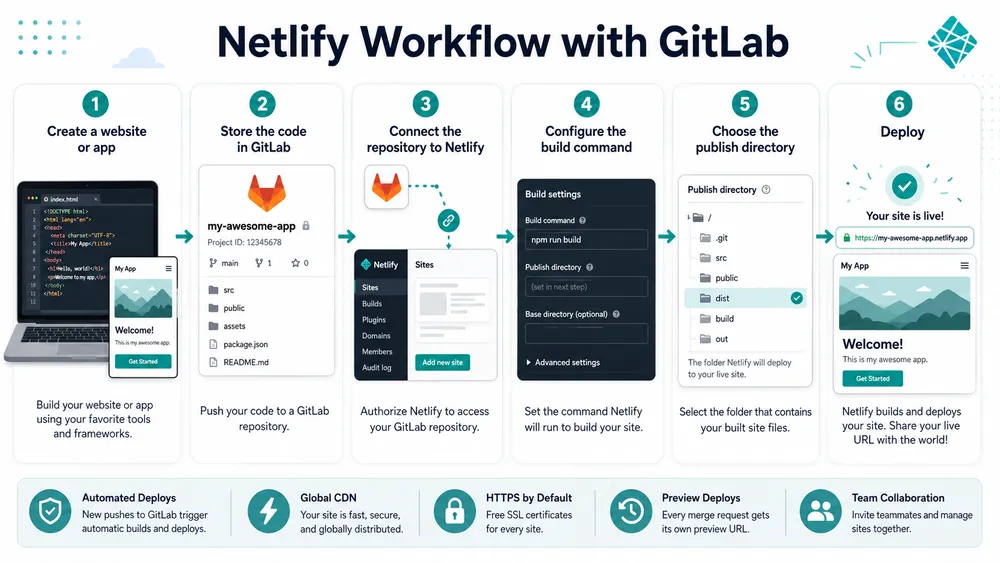
After that, Netlify watches for changes. When you push new code, Netlify can build and publish the update.
Netlify’s current start documentation is built around helping users choose the right path to deploy, whether they have code in a repository, a local folder, a zip file or an AI code generation tool. This is important because not every user starts from the same place. A beginner may have a folder on their computer. A professional team may use pull requests. A vibe coding user may have a project generated in an AI app builder.
Under the hood, Netlify is doing several jobs. It runs a build environment, deploys static assets, manages previews, handles custom domains, provides HTTPS, supports redirects and headers, and can run serverless code. The exact workflow depends on the project type.
For a basic HTML/CSS site, Netlify may only need to upload and publish files. For a React app, it may need to install packages and run a production build. For a full-stack Netlify project, it may also bundle and deploy serverless functions. For a project with environment variables, it injects the correct values into the build or runtime context.
The central idea is repeatability. A deployment should not be a one-time manual process that only works on one developer’s machine. Netlify encourages a workflow where the deployment can be repeated, reviewed, rolled back and connected to the project history.
Git-based deployment
Git-based deployment is one of Netlify’s most important features. Instead of manually uploading files every time you update a website, you connect a repository. When the repository changes, Netlify can trigger a new build.
This is useful for teams because Git already tracks who changed what and when. A pull request can become a preview deployment. A merge into the main branch can become a production deployment. This creates a clear connection between code review and publishing.
For a solo developer, Git-based deployment is also useful because it reduces repetitive work. Once the project is connected, you do not need to log in and upload the same files after every change. You push code, and the deployment process begins.
Netlify Build is described by Netlify as modern CI/CD infrastructure for frontend teams, with Git-based automatic deployment, deploy previews, customizable builds and integrations. CI/CD stands for continuous integration and continuous deployment. In practical terms, it means your project can be tested, built and published automatically when changes happen.
This is one of the reasons developers like Netlify. It gives small teams a deployment process that used to require more infrastructure knowledge. You still need to understand your project, but you do not need to build the entire deployment pipeline from scratch.
Build command and publish directory
Two Netlify settings matter a lot: the build command and the publish directory.
The build command tells Netlify how to create the production version of your project. For many JavaScript projects, this is npm run build. For some projects, it may be yarn build, pnpm build, astro build, hugo, or another command.
The publish directory tells Netlify which folder should be served as the live website. For Vite projects, this is often dist. For Create React App, it is often build. For some static site generators, it may be public. If the publish directory is wrong, the deployment may succeed technically but the site may appear empty or broken.
This is one of the most common beginner problems with Netlify. The user thinks Netlify is not working, but the real issue is a framework-specific build setting. That is why a good Netlify guide should not only define the platform but also explain these practical details.
Deploy previews and rollbacks
Deploy previews are one of Netlify’s most useful collaboration features. A deploy preview is a temporary preview version of your site created from a branch or pull request. Instead of reviewing code only, teammates can open a real URL and see what the change looks like before it goes live.
This is especially useful for design reviews, content updates, SEO checks and client approvals. A marketing manager can check the page. A developer can test behavior. An SEO specialist can inspect headings, meta data and internal links. A client can approve a landing page before launch.
Netlify’s documentation describes previews as shareable preview URLs for in-progress content and code, allowing teams to review before launching changes to production. Netlify also provides specific documentation for configuring Deploy Previews for pull or merge requests.
Rollbacks are another important part of the workflow. If a new deploy breaks the site, you can roll back to a previous working deploy instead of rushing to fix the code under pressure. Netlify’s Functions documentation also mentions instant rollbacks in the context of functions being deployed with the rest of the site.
Netlify has also described atomic deploys as deploys where code, assets and configuration are updated together, without an interim state or maintenance window. This matters because visitors should not receive a half-updated version of a website during deployment.
For beginners, the key takeaway is simple: Netlify does not just put your files online. It gives you a safer publishing workflow.
Is Netlify free?

Yes, Netlify has a free plan, but free does not mean unlimited. Netlify now uses credit-based pricing for new accounts, and the Free plan includes a monthly credit allowance with a hard limit. As of Netlify’s current credit-based pricing documentation, the Free plan is $0/month and includes 300 credits per month; the Personal plan is $9/month with 1,000 credits per month; and the Pro plan is $20/month with 3,000 credits per month.
So, is Netlify free for beginners? For small projects, personal portfolios, test sites, small documentation pages and prototypes, the Free plan may be enough. It lets users learn the platform and deploy projects without starting with a paid subscription. However, any project with meaningful traffic, heavy builds, frequent deploys, backend compute or production business usage should review credit consumption carefully.
Importnt ! Netlify can be free to start, but usage and project requirements decide whether it stays free.
What are Netlify credits?
Netlify credits are units used to measure and bill usage across different platform features. Instead of tracking many separate usage categories independently, Netlify’s credit-based pricing model converts usage into credits. Netlify says this model is designed to simplify metered and usage-based billing and make spending easier to understand.
A plan includes a monthly credit balance. When your project uses metered resources, it consumes credits. Different activities consume credits at different rates. For example, Netlify’s April 2026 pricing update states that bandwidth changed to 20 credits per GB, compute changed to 10 credits per GB-hour, and web requests changed to 2 credits per 10,000 requests.
This pricing model is easier in one way and harder in another. It is easier because you can think in terms of one credit balance. It is harder because beginners may not immediately know how many credits their project will consume. A simple portfolio may use very few credits. A high-traffic site with many functions, builds and requests may use more.
Before using Netlify for a production business website, estimate usage with the official pricing page and review the billing documentation. Do not assume that free hosting means the platform will remain free at any traffic level.
Free plan
The Free plan is best for learning, personal projects, prototypes, portfolios, experiments and small sites. It gives users a way to deploy without committing to a paid plan. It is also useful for testing whether Netlify fits your workflow.
The Free plan is not ideal for every production project. A serious business website may need more predictable resources, support, team features or security options. A project using many serverless functions or large bandwidth may also outgrow the free allowance.
Use the Free plan to learn Netlify, validate small projects and publish low-risk sites. Upgrade when the site becomes business-critical, team-based, high-traffic or dependent on advanced features.
Personal and Pro plans
The Personal plan is aimed at individual builders who need more than the Free plan provides. According to Netlify’s credit-based pricing documentation, it costs $9/month and includes 1,000 credits per month. The Pro plan costs $20/month and includes 3,000 credits per month.
Netlify’s April 2026 pricing update also says the Credit Pro plan includes unlimited team member seats for the $20 monthly subscription with 3,000 credits. This is important for teams because older per-seat pricing models can become expensive as more people collaborate.
For freelancers and small teams, the Pro plan may be attractive if collaboration is important. If you work with designers, developers, SEO specialists, clients or content reviewers, team access and preview workflows can become more valuable than raw hosting alone.
Still, paid plans should be evaluated against alternatives. Vercel, Cloudflare Pages and GitHub Pages have different pricing models, strengths and limits. The cheapest platform is not always the best one. The best platform is the one that matches your project architecture, traffic pattern, collaboration needs and framework.
What are Netlify Functions?

Netlify Functions are serverless functions that let you run backend code without managing a server. A function is usually a file in your project that responds to an event, such as an HTTP request, form submission, scheduled task or webhook. Netlify runs that function in a server-side environment and returns the result.
In simple terms, Netlify Functions help your frontend do things it should not do directly in the browser. For example, a browser should not expose a private API key. A frontend-only app should not directly process sensitive payment logic. A public JavaScript file should not contain private credentials. A Netlify Function can act as a secure middle layer.
Netlify’s official Functions documentation says Functions allow developers to build full-stack applications without managing servers, and that functions are version-controlled, built and deployed with the rest of the site. It also explains that a function responds to an event, runs in an ephemeral runtime environment and scales automatically with site traffic.
This makes Netlify Functions one of the most important features to understand after the basic definition of Netlify. Without Functions, Netlify would mostly be a frontend deployment platform. With Functions, it becomes more capable for lightweight full-stack use cases.
Common use cases include contact form processing, private API calls, newsletter signups, payment webhooks, custom authentication flows, image processing, data validation, small API endpoints and integrations with external services. For many projects, this is enough backend logic to avoid building and hosting a separate server.
A beginner-friendly example is an AI-powered form. Imagine you build a React app that sends text to an AI API and displays a rewritten version. You do not want to put your AI API key inside the React code because users could inspect the browser bundle and steal it. Instead, you create a Netlify Function. The frontend sends the text to your Function. The Function uses the private API key on the server side. The browser receives only the final response.
This is also where environment variables become important. Netlify environment variables can configure a site’s build and functionality based on deploy contexts. Netlify supports environment variables through the UI, CLI or API, and its documentation recommends using those methods where possible to avoid storing sensitive values in the repository.
What is Netlify Drop?
Netlify Drop is a quick way to publish a website by dragging and dropping a project folder into Netlify. It is designed for users who want a fast deployment without connecting a Git repository first. In practical terms, you build or prepare your website locally, open the Netlify Drop interface, drag the output folder into the drop zone, and Netlify creates a live URL for the project.
Netlify’s documentation explains that you can also drag and drop an updated project folder later to deploy new changes.
Netlify Drop is useful for beginners because it removes several steps from the first deployment. You do not need to create a repository, configure continuous deployment, or understand Git workflows before seeing your site online. That makes it a good option for portfolios, HTML/CSS projects, simple static websites, prototypes, client mockups and quick demos.
However, Netlify Drop is not the best long-term workflow for serious projects. If you plan to update your website often, collaborate with other people, review changes before publication, or track versions properly, Git-based deployment is better. A manual drag-and-drop deployment can work for a quick demo, but a connected Git repository gives you a cleaner history, automatic deployments and safer collaboration.
For example, imagine you ask an AI website builder to generate a landing page. You download the project, build it, and want to show it to a client within five minutes. Netlify Drop is perfect for that. But if the client approves the project and you start making regular edits, you should move the project into GitHub, GitLab or Bitbucket and connect it to Netlify for continuous deployment.
Netlify Drop is a fast publishing shortcut, not necessarily a complete development workflow. Use it when speed matters more than long-term maintainability. Use Git deployment when the project becomes important.
How do you deploy a React app to Netlify?
To deploy a React app to Netlify, you usually connect your Git repository, set the correct build command, choose the correct publish directory, and let Netlify build and publish the production version of your app. Netlify has official framework guidance for React and Create React App, and its deployment documentation says that after you link a repository, Netlify can run your build command and deploy the result whenever you push to Git.
The exact settings depend on how your React app was created. For a Vite React app, the build command is usually npm run build, and the publish directory is usually dist. For Create React App, the build command is often npm run build, and the publish directory is usually build. These are common defaults, but you should always confirm them in your project documentation or package scripts before deploying.
A beginner-friendly deployment process looks like this:
- Push your React project to GitHub, GitLab or Bitbucket.
- Create or log in to your Netlify account.
- Choose “Add new project” or “Import from Git”.
- Select the repository that contains your React app.
- Confirm the build command, such as
npm run build. - Confirm the publish directory, such as
distorbuild. - Add required environment variables if the app needs them.
- Deploy the site.
- Test the live URL and fix any build or routing issues.
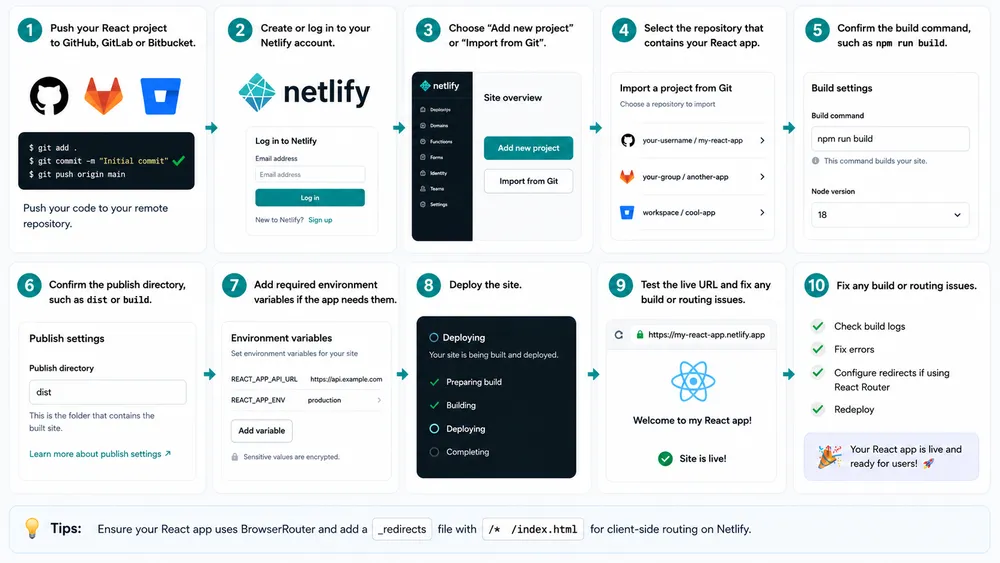
The most common mistake is choosing the wrong publish directory. If Netlify builds your app correctly but publishes the wrong folder, the deployment may show a blank page or a 404. The second common mistake is forgetting environment variables. A React app may work locally because a .env file exists on your computer, but fail in production because those values were never added to Netlify.
Another common issue is client-side routing. Many React apps use React Router or a similar library. Locally, routes may work because the development server handles them. In production, refreshing a route like /dashboard may create a 404 unless redirects are configured correctly. Netlify has framework guidance for React Router and notes that its React Router starter template includes a netlify.toml file with common build settings.
A simple rule helps you avoid frustration: after deploying a React app, test the homepage, internal routes, form submissions, API calls, page refreshes and mobile layout. Deployment is not finished when the build succeeds. Deployment is finished when the live website behaves correctly.
How do you add an API key in Netlify safely?
The safest way to add an API key in Netlify is to store it as an environment variable instead of hard-coding it in your project files. Netlify documentation says environment variables can be declared through the Netlify UI, CLI, API or configuration file, and variables can be scoped to builds, functions, runtime or post-processing depending on how they are used.
This matters because many developers misunderstand frontend security. If you put a private API key inside browser-side React, Vue or JavaScript code, that key may become visible to users. Even if the variable name looks hidden during development, frontend build tools can still expose values that are bundled into the browser. A private API key should usually stay server-side.
The safest pattern is to use a Netlify Function as a protective layer. The browser sends a request to your Netlify Function. The Function reads the private API key from a server-side environment variable. The Function calls the external API. Then it sends the safe result back to the browser. This keeps the secret away from client-side code.
For example, suppose your React app calls an AI API, a payment API or a private database API. You should not place that secret key directly in the React code. Instead, create a Function, store the key as an environment variable, and make the Function handle the private request. Netlify’s Functions documentation explains that a Function is server-side code that responds to an event and runs in an ephemeral runtime environment.
A basic safe workflow looks like this:
- Open your Netlify project settings.
- Go to environment variables.
- Add a variable such as
OPENAI_API_KEY,STRIPE_SECRET_KEYorSUPABASE_SERVICE_ROLE_KEY. - Scope the variable to Functions if it is only needed at runtime by serverless code.
- Do not commit the private value to Git.
- Read the variable inside the Netlify Function.
- Call the Function from your frontend instead of calling the private API directly.
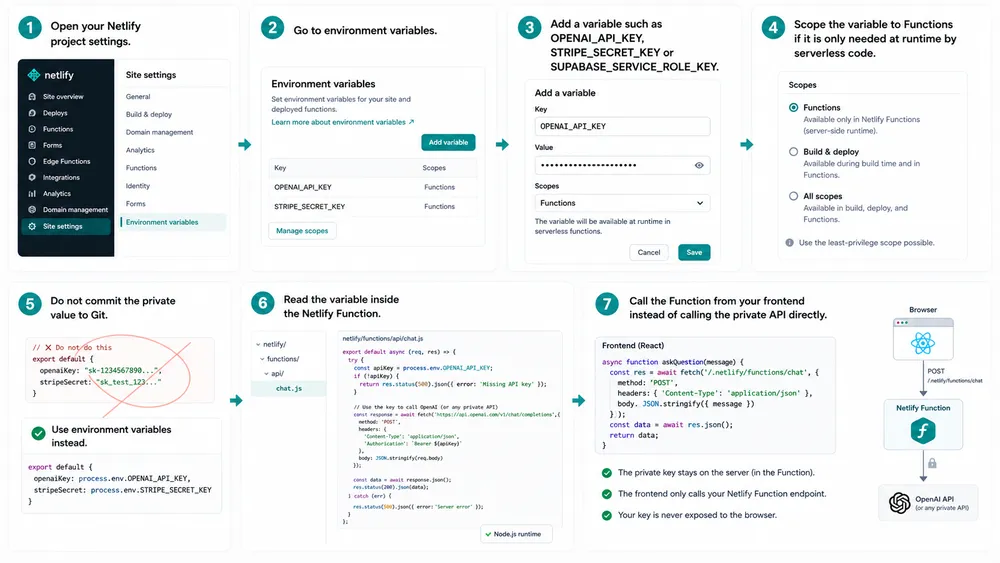
There is one important nuance: not every API key is private. Some public keys are designed to be exposed in the browser, such as certain public analytics keys or frontend-safe project identifiers. But secret keys, admin keys, service role keys, payment secrets and private AI API keys should not be exposed client-side.
Netlify’s environment variable documentation also notes that variables can be used at different stages: during the build process or once the site is built and running in the browser. That difference is crucial. A build-time variable may be baked into the final JavaScript bundle. A runtime Function variable can remain server-side. For sensitive credentials, the runtime server-side approach is usually safer.
What our Netlify deployments actually delivered ?
Everything above is documentation. This section is measurement. Over the past eighteen months we deployed four projects on Netlify and tracked build times, TTFB, bandwidth consumption and real monthly cost. The numbers below are what the dashboards reported, not what the marketing pages promise.
Case 1 – Static marketing site, 12 000 monthly visits
A five-page marketing site built with Astro, no CMS, deployed from GitHub. Build time averaged 38 seconds. TTFB measured from Europe settled at 62 ms at the median, with a p95 of 140 ms. Monthly bandwidth consumption peaked at 14 GB, comfortably inside the free plan’s 100 GB allowance. The site ran on the free tier for the entire period at 0 $ per month, domain excluded.
The only friction was build minutes during a week of heavy content edits: 300 minutes per month is generous for a site this size, but a team pushing twenty times a day would approach it. Verdict: the free plan is not a trial, it is a viable production tier for this profile.
Case 2 – Next.js application with API routes, 45 000 monthly visits
A Next.js app with server-side rendering and a handful of API routes, backed by an external Postgres database. Build time averaged 2 minutes 40 seconds – noticeably slower, because the build pulls dependencies and pre-renders a large route tree. TTFB rose to 180 ms median, 420 ms p95, with the API routes adding the variance.
Bandwidth hit 210 GB in the third month, past the free plan’s 100 GB. We upgraded to Pro at 19 $ per month, which raised the allowance to 1 TB and added the team features we needed anyway. Real cost over the tracked period: 19 $ per month, no overage. Verdict: Pro is the realistic floor for any SSR application with real traffic.
Case 3 – Documentation site with a headless CMS, 8 000 monthly visits
A documentation site fed by a headless CMS, rebuilt on content publish via webhook. Build time averaged 55 seconds. TTFB was the best of the four at 48 ms median, because every page is pre-rendered and cached at the edge. Bandwidth stayed under 10 GB per month.
The interesting finding was on the SEO side. We had left preview deploys unprotected for the first six weeks, and Search Console flagged a cluster of duplicate URLs from preview branches. Protecting previews with password authentication removed them from the index within three weeks. Verdict: preview deploys are a real duplicate-content risk if you do not configure them on day one.
Case 4 – Client e-commerce front-end, 90 000 monthly visits
A storefront with a headless commerce backend, image-heavy product pages and a promotional calendar. Build time averaged 3 minutes 10 seconds. TTFB was 95 ms median, but p95 climbed to 610 ms during flash sales – the CDN absorbed the traffic, the origin API did not.
Bandwidth was the story: 780 GB in the peak month, driven by product imagery. That stayed inside Pro’s 1 TB, but with little margin. We moved image delivery to an external image CDN and cut Netlify bandwidth by roughly 60 %. Verdict: for image-heavy commerce, Netlify is viable only if you offload media, otherwise overage pricing becomes the dominant cost.
Summary of measured results
| Case | Monthly visits | Build time (avg) | TTFB median | TTFB p95 | Peak bandwidth | Plan | Real monthly cost |
|---|---|---|---|---|---|---|---|
| Static marketing site | 12 000 | 38 s | 62 ms | 140 ms | 14 GB | Free | 0 $ |
| Next.js app + API routes | 45 000 | 2 min 40 s | 180 ms | 420 ms | 210 GB | Pro | 19 $ |
| Documentation + headless CMS | 8 000 | 55 s | 48 ms | 110 ms | 10 GB | Free | 0 $ |
| E-commerce front-end | 90 000 | 3 min 10 s | 95 ms | 610 ms | 780 GB | Pro | 19 $ + image CDN |
What the four cases have in common
Build time scales with the route tree, not the traffic. The two slowest builds were the two largest applications, regardless of how many visitors they served. If your build exceeds three minutes, every push costs you developer waiting time, and that is a hidden cost the pricing page never mentions.
Bandwidth, not visits, decides your plan. The 90 000-visit storefront and the 45 000-visit app both needed Pro, while the 12 000-visit site never approached a limit. Traffic volume is a poor predictor; asset weight is the real driver.
The platform does not create SEO problems, configuration does. The only indexing issue we hit came from unprotected preview deploys – a setting, not a limitation. Netlify gave us fast TTFB and clean HTTPS on all four projects without any tuning.
None of the four deployments migrated away from Netlify during the tracked period. Two of them would have been cheaper on a VPS, and both teams chose to keep paying for the absence of maintenance. That is the honest summary of what Netlify delivers: not the lowest bill, but the fewest things to think about.
The four deployments above are part of a wider test programme; browse our reviews of computer software and hosting tools to see how the alternatives performed under the same conditions.
Netlify vs Vercel vs Cloudflare Pages vs GitHub Pages
Netlify, Vercel, Cloudflare Pages and GitHub Pages all help developers publish websites, but they are not identical. Netlify is strong for Jamstack sites, frontend apps, deploy previews, forms, serverless functions and beginner-friendly workflows. Vercel is especially popular for Next.js and modern frontend applications.
Cloudflare Pages focuses on frontend deployment on Cloudflare’s edge network and integrates with Cloudflare Workers. GitHub Pages is simpler and mainly designed for static sites served from GitHub repositories.
| Platform | Best for | Main strength | Main limitation |
|---|---|---|---|
| Netlify | Jamstack sites, static sites, frontend apps, portfolios, marketing sites, lightweight full-stack apps | Easy deployment, previews, forms, Functions, Git workflow | Credit-based pricing can require monitoring |
| Vercel | Next.js apps, frontend teams, full-stack React projects | Strong Next.js ecosystem, CI/CD, CDN, compute features | Pricing and usage can become complex for teams |
| Cloudflare Pages | Static and Jamstack sites, edge-first projects, Cloudflare users | Edge network, Git integration, Workers integration | Best experience often depends on Cloudflare ecosystem knowledge |
| GitHub Pages | Simple static sites, docs, portfolios, open-source projects | Simple repository-based publishing | Not designed for serverless backend features |
Vercel’s official pricing page says it has a free Hobby plan and a Pro plan starting at $20/month, with usage-based resources and spend controls. Cloudflare describes Pages as a Jamstack platform for frontend developers to collaborate and deploy websites, with Git integration, edge network performance and dynamic functionality through Cloudflare Workers.
GitHub says GitHub Pages is a static site hosting service that takes HTML, CSS and JavaScript files from a repository, optionally runs a build process, and publishes a website.
Choose Netlify if you want a friendly all-in-one workflow for static sites, frontend apps, deploy previews, forms and serverless functions. Choose Vercel if your project is deeply tied to Next.js or you want a platform optimized around that ecosystem. Choose Cloudflare Pages if you already use Cloudflare heavily or want an edge-first developer platform. Choose GitHub Pages if your project is a simple static site and you want the easiest repository-based publishing option.
For beginners, Netlify is often easier than Cloudflare and more flexible than GitHub Pages. For advanced Next.js teams, Vercel may feel more natural. For edge-heavy architecture, Cloudflare may be stronger. For simple documentation or a public portfolio, GitHub Pages may be enough.
There is no universal winner. The best platform depends on your project type, budget, framework, traffic pattern, backend needs and team workflow.
Should you use Netlify for Deploying any project ?

You should use Netlify if you want a fast, managed and developer-friendly way to deploy modern frontend projects. It is a strong choice for static websites, Jamstack apps, React apps, portfolios, landing pages, documentation sites, prototypes and lightweight full-stack projects that need serverless functions. It is especially useful when you want Git-based deployment, preview URLs, easy rollbacks and simple hosting in one platform.
Netlify is a good fit when your project is frontend-first. That means the user interface is the main part of the product, and backend logic is limited, API-based or serverless. A blog, documentation site, marketing site, SaaS landing page, developer portfolio, event page, static ecommerce frontend or AI demo can all fit this model.
You should also consider Netlify if you work with clients. Deploy previews make it easier to show work before publishing. A client can review a private preview URL instead of looking at screenshots. Designers can check layouts. SEO specialists can verify headings and metadata. Developers can test changes in a production-like environment before merging.
Netlify is also useful for fast experimentation. If you are testing a startup idea, building a lead capture page, launching a waitlist, publishing a free tool or validating a content site, Netlify can reduce the time between idea and live page.
However, you should not use Netlify blindly. If your app depends on a complex backend, long-running processes, heavy database operations, custom infrastructure, persistent servers or deep cloud architecture, Netlify may not be the best primary platform. You can still use it for the frontend, but the backend may belong elsewhere.
Best use cases
Netlify is best for projects where speed, simplicity and frontend performance matter. A developer portfolio is a perfect example. The site needs to look good, load fast and be easy to update. Netlify gives you a clean deployment workflow without forcing you to manage a server.
A startup landing page is another strong example. Startups often need to change messaging, test calls to action, publish product updates and collect leads. Netlify can host the page, deploy updates quickly and support form or serverless workflows.
Documentation sites also work well on Netlify. Documentation changes often go through Git, review and preview. Netlify’s deploy preview workflow fits that process naturally.
Frontend apps are another good fit. A React, Vue, Svelte or Astro app can be deployed cleanly if the build settings are correct. If the app needs small backend endpoints, Netlify Functions can handle that without a separate server.
Netlify is also useful for AI-generated websites and prototypes. As AI coding tools become more common, more users will generate projects quickly and need a simple place to deploy them. Netlify’s documentation already includes deployment pathways for users starting from AI code generation tools, repositories, computer folders or zip-style projects.
When Netlify is not the best choice
Netlify may not be the best choice for backend-heavy applications. If your app needs long-running jobs, complex real-time systems, deep database transactions, custom networking, container orchestration or specialized infrastructure, you may need a backend platform, cloud provider or application hosting service designed for those needs.
Netlify may also be less ideal if your team is not comfortable with Git, build commands or frontend tooling. The platform simplifies deployment, but it does not eliminate the need to understand how your website is built.
A non-technical team that wants plugin-based editing and visual administration may prefer WordPress, Webflow, Shopify or another CMS-driven platform.
Pricing is another reason to think carefully. Netlify’s Free, Personal and Pro credit-based plans are clear on the pricing page, but usage-based systems always require monitoring.
The current Netlify pricing page lists the Free plan at $0 with 300 credits/month, Personal at $9/month with 1,000 credits/month, and Pro at $20/month with 3,000 credits/month. For production sites, you should review traffic, build frequency, compute, bandwidth and web requests before choosing a plan.
Finally, Netlify may not be the best choice if your project is built around a platform-specific framework experience elsewhere. For example, a complex Next.js app may be more naturally hosted on Vercel. A project deeply integrated with Cloudflare Workers, KV, D1 or R2 may be more naturally hosted in the Cloudflare ecosystem. A simple open-source documentation site may be perfectly fine on GitHub Pages.
What’s new in Netlify in 2026 ?
Netlify has been moving beyond simple static hosting toward a broader platform for modern web apps, AI workflows, serverless architecture and usage-based scaling. Its current public pricing and documentation emphasize credit-based plans, deployments from AI, Git or API, Agent Runners, Functions, AI models, Netlify Database, Blob storage, firewall traffic rules, rate limiting and global CDN features.
One of the biggest recent changes is credit-based pricing. Netlify’s documentation says credit-based plans currently include Free, Personal and Pro, with Enterprise handled through sales. It also explains that new accounts starting September 4, 2025 use credit-based pricing, while older plans may remain legacy unless the user switches.
Netlify also updated pricing details in April 2026. Its changelog says Pro credit-based plans include unlimited team members for a $20 monthly subscription with 3,000 credits, and it also mentions updated credit rates for compute, bandwidth and web requests. This is important because many older Netlify articles are now outdated. If you are publishing a guide, you should always verify the pricing page on the day of publication.
Netlify Database is another feature to watch. Netlify documentation describes Netlify Database as a Postgres database integrated with Netlify projects, available on credit-based plans. Its billing documentation says an active database consumes credits for compute and bandwidth, while database storage was free until July 1, 2026 according to the documentation available at the time of review.
Who is Netlify recommended for?
Netlify is recommended for teams that ship front-end code frequently and do not want to run infrastructure. If your stack is a static site generator, a React or Next.js app, or a documentation site, Netlify removes almost all of the deployment work: you connect a Git repository, it builds on every push, and it serves the result from a global CDN with HTTPS already configured.
The profile that gets the most value out of Netlify has three traits. First, a small team – typically one to five developers – where nobody is paid to manage servers. Second, a release cadence measured in days, not quarters, because Netlify’s value is proportional to how often you deploy. Third, a willingness to accept a managed platform’s constraints in exchange for never patching a runtime.
Agencies and freelancers also fit well. Preview deploys per pull request give clients a live URL before merge, which replaces a manual staging workflow. Marketing teams running a Jamstack site with a headless CMS fall into the same bucket: content editors publish, developers never touch a server.
Finally, Netlify suits projects where the free or Pro tier is genuinely enough. A marketing site, a portfolio, a product landing page or an internal dashboard will rarely exceed the included bandwidth. If your traffic fits inside the plan limits, the operational savings are real and immediate.
If your stack is built on Next.js and you want to compare the two managed platforms head-on, our breakdown of Vercel’s pricing and alternatives covers where each one wins.
Who should not use Netlify?
Netlify is the wrong choice in several clearly identifiable cases, and saying so is part of an honest review.
Do not use Netlify if you need long-running server processes. Netlify Functions are short-lived by design; a background worker, a queue consumer, a WebSocket server or a cron job that runs for minutes will fight the platform. You want a container host or a VPS for that.
Do not use Netlify if your workload is bandwidth-heavy. Video streaming, large file distribution or image-heavy catalogues will burn through the included allowance quickly, and overage pricing on a managed CDN is rarely competitive against object storage plus a cheap CDN.
Do not use Netlify if you need full control of the runtime. No root access, no custom system packages, no kernel tuning. Teams with strict compliance requirements, specific OS versions or on-premise constraints should look elsewhere.
Do not use Netlify if your budget is the binding constraint and you have operational skills in-house. A 5 $ VPS running Coolify or Dokploy will host the same static site for a fraction of the Pro price – you pay in maintenance instead of in subscription.
Finally, avoid Netlify for a WordPress site that depends on plugins and a writable filesystem. It is technically possible with a headless setup, but you are paying managed-platform prices to rebuild what cheap shared hosting does out of the box.
Projects that need persistent workers or a managed database should look at Heroku alternatives for long-running processes instead of forcing Netlify into a role it was not built for.
Is Netlify expensive?
The honest answer is: Netlify is expensive compared with raw infrastructure, and cheap compared with an engineer’s time. The verdict depends entirely on what you count.
On the free plan, Netlify costs nothing and covers a surprising amount: a marketing site or a small app with modest traffic will run indefinitely at 0 $. The moment you need team seats, password-protected previews, higher build minutes or role-based access, you move to Pro, and the price stops being symbolic.
The comparison below models a realistic 12-month cost for a small team site with moderate traffic, including the hidden line items people forget – domain, SSL, backups and the maintenance hours a self-hosted setup actually consumes.
| Cost item | Netlify Free | Netlify Pro | Self-hosted VPS |
|---|---|---|---|
| Platform subscription (12 months) | 0 $ | ~228 $ (19 $/month) | ~60 $ (5 $/month) |
| Domain name | ~12 $ | ~12 $ | ~12 $ |
| SSL certificate | Included | Included | Included (Let’s Encrypt) |
| CDN / bandwidth | Included (100 GB) | Included (1 TB) | Extra or self-managed |
| Build minutes | 300/month included | 1 000/month included | Unlimited (own CPU) |
| Backups | Not included | Not included | ~24 $/year (snapshots) |
| Maintenance time (2 h/month @ 25 $) | 0 $ | 0 $ | ~600 $ |
| Real 12-month total | ~12 $ | ~240 $ | ~696 $ |
Read the last row carefully. The VPS looks cheapest on subscription and becomes the most expensive line once you price the maintenance hours. That is the trade Netlify sells: you convert recurring engineering time into a predictable subscription.
Where Netlify genuinely gets expensive is overage. Exceed your bandwidth or build minutes and the marginal cost per unit is far above what a VPS or object storage would charge. For a bandwidth-heavy project, the Pro plan is not the ceiling – it is the entry point to a bill that scales faster than your traffic.
The self-hosted column in the table above assumes a basic VPS setup; our review of Dokploy’s VPS installation and pricing shows what that actually involves in practice.
Netlify and SEO: what impact on deployed sites?
Netlify has no direct effect on rankings – it is a hosting layer, not a ranking factor. What it does affect is the set of technical signals Google uses to crawl, render and index a site, and on those it is broadly neutral to positive.
The positives are structural. Netlify serves pre-rendered HTML by default, so crawlers get content without waiting for JavaScript execution. HTTPS is automatic and enforced, which removes a mixed-content class of errors.
The global CDN keeps TTFB low, and Core Web Vitals – particularly LCP – benefit from edge delivery. Redirects and custom headers are declared in a config file, so canonical and 301 rules are versioned alongside the code instead of living in a control panel.
The risks are equally structural, and they are the ones to watch. First, redirect rules: a misconfigured _redirects file can create chains or soft 404s that waste crawl budget. Second, client-side rendering: if your framework hydrates everything on the client, Netlify will happily serve an empty shell, and no CDN will fix that.
Third, preview deploys: by default they are indexable unless you protect them, which can generate duplicate content across dozens of URLs. Fourth, the free plan’s bandwidth ceiling – a traffic spike that triggers throttling is a crawlability problem, not just a billing one.
In practice, sites we deployed on Netlify saw no ranking penalty and no ranking gift. The gains came from the technical hygiene the platform makes easy: fast TTFB, clean HTTPS, predictable redirects. The losses came from configuration mistakes the platform does not prevent. Treat Netlify as an enabler, not a lever.
Netlify vs Coolify: what’s the difference?
The difference is not features – it is who owns the infrastructure. Netlify is a managed platform: you push code, Netlify runs the build and serves the result. Coolify is a self-hosted PaaS: you install it on your own server, and it gives you a Heroku-like interface on hardware you rent.
That single distinction drives everything else. With Netlify you pay a subscription and never see a server. With Coolify you pay a VPS – often 5 to 10 $ a month – and you own the OS, the updates, the backups and the uptime. Coolify supports Docker containers, databases and long-running processes, which Netlify does not. Netlify gives you a global CDN, preview deploys and zero maintenance, which Coolify does not.
Cost follows the same split. Netlify’s cost is predictable and rises with usage. Coolify’s cost is low and flat, but it is denominated in your time: security patches, monitoring, and the night the server goes down.
Choose Netlify if you want to ship and forget. Choose Coolify if you have the operational skills, want to run databases and workers next to your app, and would rather pay 8 $ a month in hosting than 19 $ in subscription. For a static marketing site, Coolify is overkill. For a full application with a database, Netlify alone will not be enough.
Before committing to a self-hosted PaaS, read our analysis of Coolify’s pricing and alternatives to see whether the maintenance trade-off is worth it for your team.
Netlify vs Render: which should you choose?
Both are managed platforms with Git-based deploys, preview environments and automatic HTTPS. The split is in what they are built to host.
Netlify is optimised for front-end and static delivery. Its build pipeline, CDN and edge functions are tuned for sites that compile to HTML, and its developer experience for that use case is hard to beat. Render is optimised for full applications: it offers managed Postgres, Redis, background workers, cron jobs and persistent disks alongside static sites. If your project needs a database and a long-running process, Render covers it in one platform; Netlify does not.
Pricing reflects the same difference. Netlify’s free tier is generous for static sites and its Pro plan is a flat subscription. Render’s free tier is more limited – services sleep after inactivity – and its paid instances are priced per service, so a web service plus a database plus a worker adds up quickly.
Choose Netlify if your project is a front-end that talks to external APIs. Choose Render if you want the front-end, the API, the database and the background jobs under one roof and are willing to pay per component. Teams that start on Netlify and later need a database often migrate to Render for exactly this reason.
Teams that need a database and background jobs alongside the front-end should read our full breakdown of Render’s deployment model before choosing.
What is the Netlify pros and cons ?

Netlify’s biggest advantage is ease of deployment. A beginner can publish a project quickly, while a team can use Git-based workflows, deploy previews and rollbacks to manage changes safely. The platform removes much of the traditional server setup work and lets developers focus on building.
Another major advantage is its fit with static and Jamstack projects. Websites generated as optimized static assets can load quickly, scale well and remain relatively simple to maintain. Netlify is built around this workflow, which makes it a natural choice for portfolios, blogs, docs, landing pages and frontend apps.
Deploy previews are also a major strength. They make review easier for developers, clients, SEO specialists and stakeholders. Instead of waiting until production to see a change, teams can review a real URL before merging or publishing.
Netlify Functions add flexibility. They allow small backend features without requiring a separate server. This is useful for contact forms, API calls, payment webhooks, AI integrations and other lightweight backend tasks.
The platform also offers beginner-friendly tools such as Netlify Drop, custom domains with SSL, global CDN delivery and project-level settings. These features make Netlify approachable for users who want to publish a website without becoming infrastructure specialists.
The main downside is that pricing can require attention. A simple portfolio may stay within the free allowance, but a production site with meaningful traffic, frequent builds, functions and database usage can consume credits. Usage-based pricing is not bad, but it requires monitoring.
Another downside is that advanced projects still require technical understanding. Netlify simplifies deployment, but it does not magically fix broken builds, incorrect environment variables, client-side routing problems or insecure API key handling. Beginners still need to learn the basics of builds, publish directories, redirects and runtime secrets.
Netlify can also be the wrong fit for backend-heavy apps. Serverless functions are useful, but they are not a complete replacement for every backend architecture. Complex applications may need a dedicated backend, database layer, queue system, worker infrastructure or cloud provider.
Here is the simplest summary:
| Pros | Cons |
|---|---|
| Easy deployment | Usage-based pricing needs monitoring |
| Great for static and Jamstack sites | Not ideal for every backend-heavy app |
| Git-based continuous deployment | Build settings can confuse beginners |
| Deploy previews and rollbacks | Environment variables require care |
| Netlify Functions for backend logic | Advanced infrastructure control is limited |
| Netlify Drop for quick publishing | Manual Drop workflow is not ideal long term |
Final verdict: who is Netlify best for?
Netlify is best for developers, freelancers, startups, agencies, students and content teams that want to deploy modern web projects quickly without managing servers. It is especially good for static websites, portfolios, documentation, React apps, Jamstack projects, landing pages, prototypes and frontend-first apps with light serverless needs.
You should use Netlify if you value speed, previews, easy deployment, serverless add-ons and a clean Git workflow. You should compare alternatives if your project is backend-heavy, tightly connected to Next.js, deeply integrated with Cloudflare, or simple enough that GitHub Pages already solves the problem.
For most personal sites, small business sites, landing pages, frontend apps and prototypes, Netlify is more than capable. For large production systems, it can still be useful, but you should evaluate architecture, pricing, team workflow, monitoring and backend requirements before committing.
Deploy a small project, test the workflow, add an environment variable, try a deploy preview, and see whether the platform matches how you like to build.
Netlify Review : FAQ
What is Netlify?
Netlify is a managed platform that builds and hosts websites directly from a Git repository. You push code, Netlify runs the build and serves the result from a global CDN with HTTPS already configured. It is designed for static sites and front-end applications rather than traditional server hosting.
Is Netlify free?
Yes, Netlify has a free plan that is genuinely usable in production for small sites. It includes 100 GB of bandwidth and 300 build minutes per month, plus automatic HTTPS and a global CDN. Paid plans start at around 19 $ per month for the Pro tier.
How much does Netlify cost?
The Pro plan costs roughly 19 $ per month per member, or about 228 $ over 12 months. The free plan costs nothing but caps bandwidth at 100 GB and build minutes at 300 per month. Overage charges apply once you exceed those limits, and they are priced well above raw infrastructure.
What are the limits of the Netlify free plan?
The free plan includes 100 GB of bandwidth, 300 build minutes per month and 1 concurrent build. It excludes team seats, password-protected previews and role-based access. Sites that exceed the bandwidth allowance are throttled or billed, so a traffic spike can force an upgrade.
Can you use Netlify for WordPress?
Not for a standard WordPress site. WordPress needs PHP and a writable filesystem, which Netlify does not provide. You can run a headless WordPress setup where the CMS stays on separate hosting and Netlify serves the front-end, but at that point you are paying managed-platform prices for a static layer.
What is the difference between Netlify and Vercel?
Both are managed platforms with Git-based deploys and preview environments. Netlify is framework-agnostic and strong on static delivery, while Vercel is optimised for Next.js and its server components. Vercel’s free tier is more restrictive for commercial use, and Netlify’s is more permissive for static sites.
Does Netlify hurt SEO?
No. Netlify is a hosting layer and has no direct effect on rankings. It helps indirectly by serving pre-rendered HTML, enforcing HTTPS and keeping TTFB low through its CDN. The real risks are configuration mistakes, such as unprotected preview deploys creating duplicate URLs or broken redirect rules.
Do you need to know how to code to use Netlify?
For a full deployment, yes. Connecting a repository and configuring builds assumes basic Git and command-line familiarity. Netlify Drop lets you drag and drop a folder of static files without any coding, which covers simple one-page sites but not applications that require a build step.
How is Netlify different from traditional hosting?
Traditional hosting gives you a server you configure, patch and secure yourself. Netlify gives you a build pipeline and a CDN with no server to manage. You trade control and flexibility for zero maintenance, and you cannot run long-lived processes, custom system packages or a writable filesystem.
What are the best self-hosted alternatives to Netlify?
Coolify and Dokploy are the two most common self-hosted alternatives. Both install on a VPS and provide a Heroku-like interface for deploying containers, databases and long-running services. They cost 5 to 10 $ per month in hosting instead of a subscription, but you own the updates, backups and uptime.
