
How to Use ChatGPT on Android in 2026 : Complete Beginner’s Guide
ChatGPT is available on Android through an official app published by OpenAI on Google Play. To use it, simply install the app, sign in or create an account, then ask a question in the message box. On mobile, ChatGPT can be used to write text, summarize a document, translate a sentence, explain an image, prepare an email, find ideas, or chat using voice mode.
The most important point is to download the right app. OpenAI recommends searching for “openai chatgpt” in Google Play and checking that the app is actually published by OpenAI. The official Android app requires a device with Google Play and Android 7.0 or a more recent version.
In this guide, you will see how to install ChatGPT on Android, recognize the official app, create your account, understand the interface, use text, voice, photos, files, and save time with simple prompts. The goal is to help you use ChatGPT properly on a smartphone, without confusion with fake apps, old versions, or outdated options.
What configuration is required to install ChatGPT on Android ?
According to OpenAI, the ChatGPT app for Android works on Android devices equipped with Google Play and running Android 7.0 or a more recent version.
This means that most recent Android smartphones are compatible. However, some very old phones, some devices without Google Play, or some models sold with specific restrictions may not display the app in the Play Store.
Before installing ChatGPT, check these four points :
- Your phone must have access to Google Play.
- Your Android version must be Android 7.0 or more recent.
- Your internet connection must be active.
- Your Google account must be able to download apps from the Play Store.
To check your Android version, open your phone’s settings, then look for a section such as “About phone,” “Phone information,” or “Android version.” The exact name may vary depending on Samsung, Xiaomi, Oppo, Google Pixel, Honor, Motorola, or other brands.
Download the official ChatGPT app on Android
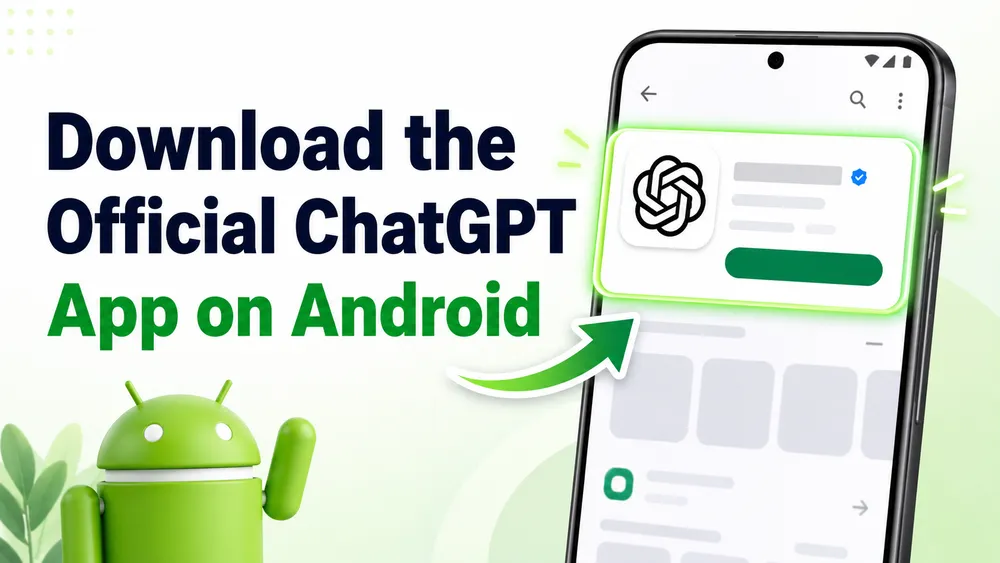
To install ChatGPT on Android, open Google Play, search for “openai chatgpt,” install the app published by OpenAI, then sign in with an OpenAI, Google, Apple account, or another available method. Once inside the app, write your request in the message box or use voice mode if the option is available. Your history can sync across your devices.
The official ChatGPT app on Google Play is free to download, syncs history across devices, and gives access to the latest improvements offered by OpenAI. The Google Play listing notably highlights voice mode, instant answers, learning support, creative ideas, and professional assistance.
Here is the detailed process :
- Open the Google Play Store : on your Android device, find the Google Play Store icon and tap it to open the app. The Play Store is the official marketplace for Android apps, offering a wide range of apps, including ChatGPT.
- Search for ChatGPT : in the search bar at the top of the Play Store screen, type “ChatGPT” and start the search. Make sure you enter the name correctly to find the official app.
- Select the ChatGPT app : you will see a list of apps in the search results. Find the official ChatGPT app developed by OpenAI and select it. Watch out for imitations and make sure you choose the authentic app by checking the developer’s name.
- Install the app : once on the app page, you will find an “Install” button. Tap this button to start downloading and installing the app on your device. Installation may take a few minutes, depending on your internet connection and your device’s speed.
- Open ChatGPT : after installation, an “Open” button will appear where the “Install” button was. Tap it to launch ChatGPT.
You can also find the ChatGPT icon on your home screen or in your app drawer to open it.
- Sign in or create an account : after installation, open the ChatGPT app. You can usually sign in with an existing account or create a new account. Depending on the available options, the app may offer sign-in by email, Google account, Apple account, or another authentication method.
If you already use ChatGPT on a computer, sign in with the same account. This allows you to retrieve your conversations, preferences, and history when synchronization is available. The Google Play listing specifically states that the official app syncs history across devices.
If you create a new account, use an email address you can access. You may need it to confirm your registration, recover your password, or secure your account.
Once signed in, take a few minutes to check the main settings. Open the side menu or profile icon, then look at the sections related to your account, data, language, notifications, and available features.
Menus may change as the app is updated, but the idea remains the same : understand where your settings are before using ChatGPT regularly.
Congratulations, you have now installed ChatGPT on your Android device! You are ready to explore its many features and start interacting with this advanced artificial intelligence.
Should you download a ChatGPT APK file ?
It is better to avoid APK files found on unofficial websites. Even if some download sites are well known, the safest option remains Google Play, because you can verify the publisher, receive updates automatically, and reduce the risk of installing a modified version.
Downloading an APK can cause several problems : an outdated app, a modified file, excessive permissions, no automatic updates, risk of data theft, or difficulty uninstalling the app. For a service that may contain your conversations, ideas, texts, or sometimes professional information, it is better to stay with the official source.
If the app does not appear in Google Play, do not rush to download an APK. First check your Android version, your country, the status of Google Play, your connection, and Play Store updates. We will cover troubleshooting solutions in the second part of this guide.
Discovering the ChatGPT user interface on Android
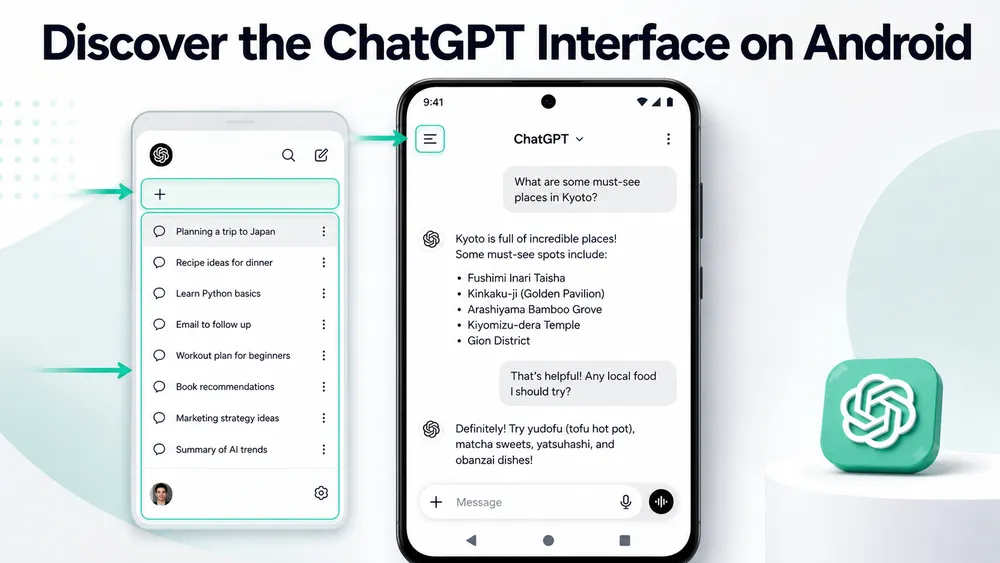
The ChatGPT interface on Android is designed like a messaging app. You write a request, ChatGPT responds, then you can continue the conversation with more details or new instructions. This logic is simple, but it becomes much more powerful when you understand the main areas of the app.
- Home screen : the home screen displays an overview of your recent conversations with ChatGPT. You can easily resume a previous conversation or start a new one by tapping the creation button.
- Creation button : the creation button, often represented by a “+” symbol or a pencil, allows you to start a new conversation with ChatGPT. A simple tap gives you access to a blank space where you can type your first question or comment.
- Customization options : in the settings, accessible through the menu, you will find options to personalize your experience, such as notifications, the app theme, and language preferences.
- Version selector : you also have a version selector located at the top of the user interface, allowing you to switch from ChatGPT-5.5 to another model in one click.
- The side menu generally allows you to find old conversations, start a new discussion, access settings, or manage your account.
- Voice, photo, or file options may appear around the message box, depending on your app version, your account, and the features being rolled out.
- The history helps you resume a conversation started on mobile or on a computer.
OpenAI presents ChatGPT mobile as a tool that can be used on the go, with voice conversations, the ability to ask questions about photos, and even manage Codex from your phone.
However, keep one rule in mind : the interface can change. OpenAI regularly rolls out new features. Buttons, model names, or menus may therefore be different depending on the date, country, account type, and installed version. That is why it is better to explain the functions rather than memorize the exact location of each button.
Start a new conversation
To start a new conversation, open ChatGPT and tap the button that lets you create a new chat. It may appear as an icon, a “New chat” button, or an option in the side menu.
A new conversation is useful when you completely change topics. For example, avoid mixing a question about a trip to Paris, a professional email, a math assignment, and a recipe request in the same thread. ChatGPT may take unnecessary context into account and produce a less precise answer.
Instead, create one conversation per theme :
- One conversation for your emails.
- One conversation for your studies.
- One conversation for your trip.
- One conversation for your content ideas.
- One conversation for your technical problems.
This organization makes your history clearer and helps you find important answers more easily.
Find an old conversation
ChatGPT’s history allows you to resume an exchange without starting over. This is especially useful on Android, because you can start a discussion on a computer, then continue it on your phone.
For example, you can prepare an article outline on your PC, leave home, then ask ChatGPT on Android to turn that outline into a task list. You can also start a shopping list on mobile, then complete it later.
To find an old conversation, open the side menu and look for the list of discussions. The name of a conversation is often generated automatically based on the topic covered. If the app lets you rename the conversation, give it a clear title : “Brussels Trip 2026,” “SEO Prompts,” “Cover Letter,” “English Course,” “YouTube Video Ideas.”
This small habit saves a lot of time, especially if you use ChatGPT every week.
Understand the model or mode choice
The existing article should no longer explain ChatGPT as a simple choice between “ChatGPT-3” and “ChatGPT-4.” That presentation is too old and can mislead readers. In 2026, OpenAI is moving the interface toward simpler choices, especially to help users select a balance between speed and reasoning. OpenAI’s release notes mention, for example, simplified controls in the model selector, with options such as Instant, Medium, and High, depending on the context and available plan.
For a beginner, the right approach is simple :
- Choose the fast mode for simple questions.
- Choose a more advanced or more thoughtful mode for complex tasks.
- Use the available options without getting stuck on technical names.
For a short translation, a rewrite, or a quick idea, an instant mode is often enough. To analyze a document, compare several options, prepare a strategy, solve a problem, or write long-form content, a more advanced mode may be more suitable.
The important thing is not only the selected model. The quality of the prompt matters a lot. A clear, contextualized, and structured request almost always gives better results than a vague question.
Use ChatGPT on Android in everyday life
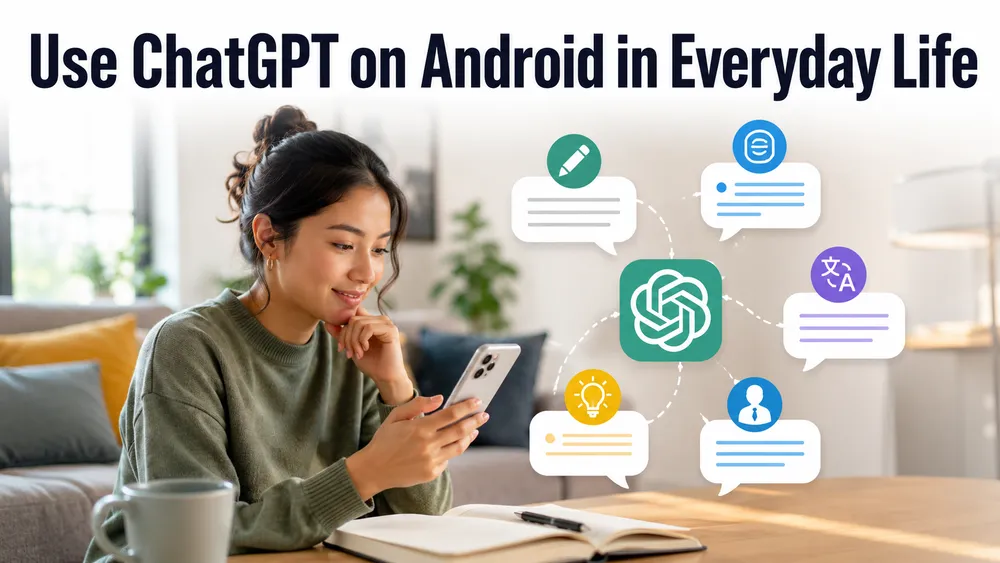
In practice, ChatGPT works like a conversation. You ask a question, add context, then request an answer in the format you want : list, table, summary, email, outline, simple explanation, translation, or step-by-step instructions. The more precise your request is, the more useful the answer will be.
Simple example :
“Explain how ChatGPT works in 5 simple sentences, as if I were a beginner.”
More effective example :
“Act as an Android trainer. Explain how to use ChatGPT on my phone, step by step, with simple words and a list of mistakes to avoid.”
The second request gives a role, context, format, and difficulty level. This is what helps produce a clearer answer.
ChatGPT on Android becomes truly useful when it fits into your daily tasks. On a smartphone, the point is not only to access a chatbot. It is being able to ask for help exactly when you need it : on public transport, at work, in class, in a store, in front of a document, while traveling, or during a conversation.
The official ChatGPT download page highlights mobile uses : chatting on the go, having voice conversations, asking questions about photos, and using certain features from your phone.
Here are the most useful uses.
Ask a written question
The simplest use is to write a question. You can ask for an explanation, an idea, a summary, a translation, or an outline.
Examples :
- “Explain the difference between Wi-Fi and mobile data.”
- “Summarize this text in 5 points.”
- “Write a polite message to reschedule an appointment.”
- “Give me 10 simple meal ideas with rice, eggs, and tomatoes.”
- “Translate this sentence into natural English.”
To get a better answer, always add three elements : context, goal, and format.
Instead of writing :
“Write me an email.”
Write :
“Write a professional email to request that a meeting be rescheduled. The tone should be polite, short, and clear. Suggest two new dates and end with a thank-you phrase.”
This method works very well on Android, because it avoids back-and-forth. You give a complete instruction from the start, and ChatGPT can produce a more directly usable answer.
Dictate a prompt with the Android keyboard
Even without using ChatGPT’s built-in voice mode, you can dictate a request using the microphone on the Android keyboard. This is often faster than typing a long prompt on a touchscreen.
Open the message box, tap the microphone icon on your keyboard, then speak naturally. Then reread the text before sending it. This step is important, because dictation can misunderstand a proper name, a foreign language, or a technical term.
Dictation is useful for long requests :
- “Prepare a list of questions to ask a landlord before renting an apartment.”
- “Help me explain to a client why their website is slow, using simple words.”
- “Turn this idea into a structured article outline for a blog.”
On mobile, this method lets you use ChatGPT as a pocket assistant. You think out loud, quickly correct the text, then send it.
Use ChatGPT voice mode
Voice mode lets you talk with ChatGPT more naturally. On Google Play, OpenAI presents voice mode as a feature that lets you talk while walking, driving, with family, or in everyday situations.
Depending on your app version, the voice mode icon may appear in the conversation interface. Tap it, allow microphone access if Android asks, then start speaking. ChatGPT can listen to your request and respond orally.
Voice mode is useful for :
- Practicing a foreign language.
- Asking for an explanation while cooking.
- Preparing a difficult conversation.
- Reviewing a lesson without looking at the screen.
- Brainstorming ideas during a walk.
- Getting a quick answer when typing would take too long.
However, avoid using voice mode to share sensitive information in a public place. People around you may hear your request or part of the answer. For personal, medical, financial, legal, or professional topics, choose a quiet and private environment.
Send a photo or screenshot
On Android, ChatGPT can also be useful with images when the feature is available on your account. The official ChatGPT download page mentions the ability to ask questions about photos from mobile.
For example, you can send :
- A photo of an object to identify.
- A screenshot of an error message.
- An image of a menu in a foreign language.
- A photo of homework or a printed document.
- A screenshot of an interface you do not understand.
- A photo of a product to request a comparison or explanation.
The right reflex is to add a precise instruction with the image.
Bad prompt :
“Look at this.”
Better prompt :
“Analyze this screenshot. Explain what the error message means, then give me 3 simple solutions to try on Android.”
Another example :
“Here is a photo of a menu in Italian. Translate the main dishes into English and indicate which ones are vegetarian if possible.”
ChatGPT can help you understand an image, but it can also make mistakes. Do not use it as your only source to identify medicine, diagnose a health problem, verify a legal document, or make an important decision. In these cases, ask for a general explanation, then verify with a reliable source or a professional.
Import or analyze a file
Depending on the features available on your account, ChatGPT may allow you to add or analyze certain files. On mobile, this use is practical for summarizing a document, extracting key points, preparing a response, or turning content into an outline.
Examples of requests :
- “Summarize this document in 10 key points.”
- “List the actions to take after reading this file.”
- “Turn this text into a professional email.”
- “Find the mistakes and suggest a corrected version.”
- “Explain this document in simple words.”
Before sending a file, check that it does not contain unnecessary sensitive data : ID number, bank details, confidential client information, medical data, passwords, or internal documents. If you only need a general explanation, remove or hide personal information before sharing it.
Copy, share, or reuse an answer
On Android, a ChatGPT answer can be copied and used in another app : Gmail, WhatsApp, Google Docs, Notion, WordPress, LinkedIn, or a note-taking app. This is one of the biggest advantages of mobile use.
After getting an answer, always reread it before sending it to someone. ChatGPT can produce fluent text, but it is not always perfectly accurate or adapted to the context. For a professional email, check the tone. For technical information, verify the details. For a translation, make sure the meaning matches your intention.
A good method is to ask for a second version :
- “Make this message shorter.”
- “Adapt the tone for a client.”
- “Make this answer warmer.”
- “Turn this explanation into a WhatsApp message.”
- “Make a more professional version.”
This ability to iterate is one of the best uses of ChatGPT on Android. You do not need to get the perfect answer on the first try. You can gradually improve the result.
Useful ChatGPT prompts for Android
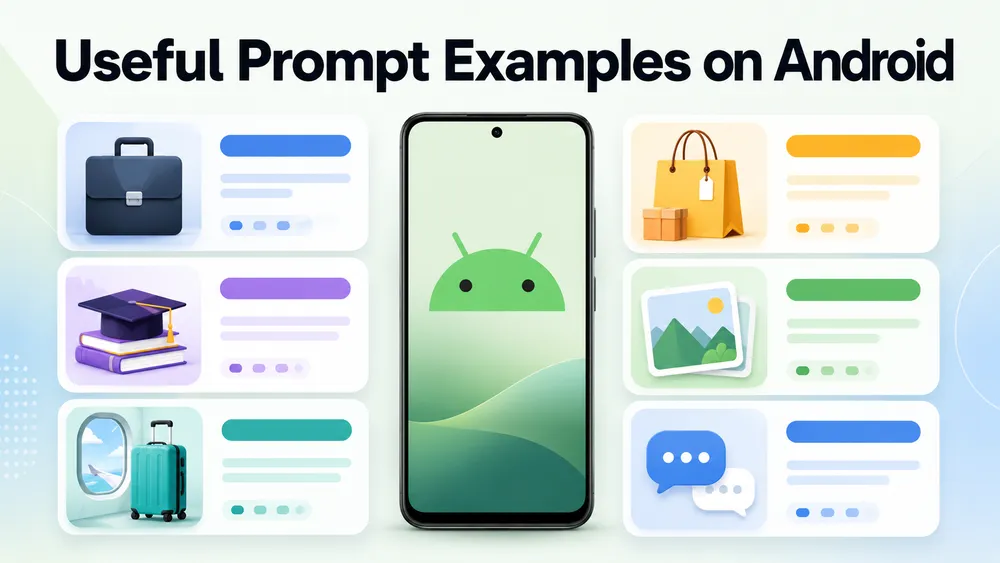
A prompt is simply the instruction you give to ChatGPT. On Android, the best prompts are short, clear, and easy to adapt. You do not need to write a complicated sentence. Above all, you need to explain what you want, for whom, in what context, and in what format.
Here is a simple formula :
“Act as [role]. Help me with [goal]. Here is the context : [context]. Give me an answer in the form of [format].”
Example :
“Act as a productivity advisor. Help me organize my day. Here are my tasks : reply to 10 emails, prepare a meeting, go grocery shopping, and review a lesson. Give me a simple schedule by time slots.”
This structure works for almost every use case.
Prompts for work
- “Write a professional email to follow up with a client who has not replied for 7 days. The tone should be polite, short, and not pushy.”
- “Summarize this meeting report into 5 decisions, 5 actions to take, and 3 points to clarify.”
- “Turn my notes into a 10-minute presentation outline.”
- “Explain this technical problem to a non-specialist client, using simple words.”
- “Suggest 5 LinkedIn titles to announce a new offer, with a professional tone.”
Prompts for studying
- “Explain this lesson as if I were 15 years old, then give me 5 questions to check whether I understood.”
- “Create a revision sheet on this topic with definitions, examples, and common mistakes to avoid.”
- “Ask me 10 quiz questions about this text, one by one, then correct my answers.”
- “Summarize this chapter as a detailed outline.”
- “Explain the difference between these two concepts with a comparison table.”
Prompts for everyday life
- “Give me a simple recipe with the following ingredients : rice, eggs, tomatoes, onion, and tuna.”
- “Prepare a grocery list for 5 easy and budget-friendly meals.”
- “Help me reply politely to this message without sounding cold.”
- “Plan my 2-day trip to Lyon on a limited budget.”
- “Compare these two products based on their features and tell me which one to choose according to my needs.”
Prompts for photos and screenshots
- “Analyze this screenshot and explain the problem in simple language.”
- “Translate the text visible in this image.”
- “Tell me what I should check before buying this product.”
- “Summarize the important information from this poster.”
- “Explain this chart as if I were discovering the topic.”
These examples are intentionally simple. The goal is not to create impressive prompts, but effective requests that can be used quickly on an Android phone.
Best practices for getting better answers
The quality of the answers depends a lot on how you phrase your request. ChatGPT can understand a short question, but it gives better results when you add context.
Start by saying what you want to get. For example : “I want an email,” “I want an explanation,” “I want a table,” “I want a summary,” “I want a list of steps.”
Then add the context. Who is the answer for ? What is the reader’s level ? What is the problem ? What information should be taken into account ?
Specify the format. A table, a numbered list, a short text, a detailed outline, or a 3-sentence version will not produce the same result.
Indicate the tone. Professional, simple, friendly, educational, direct, reassuring, or commercial.
Ask for an improvement if needed. You can write : “Make the answer shorter,” “Add examples,” “Explain more simply,” “Make it more convincing,” “Remove the jargon.”
Here is a complete example :
“Act as an Android expert. I want to understand why my phone heats up when I use certain apps. Explain the possible causes, give me a simple checklist, and end with the warning signs I should worry about.”
Is ChatGPT on Android free ?
The official ChatGPT app on Android is free to download from Google Play. The official listing says that the app is free, syncs history across devices, and gives access to the latest OpenAI updates, including some image-related features.
This does not mean that all features are unlimited or available for every account. Like many AI services, ChatGPT may offer different limits depending on your account, your country, the app version, and the plan you use. For a beginner, the simple rule is this : you can install the app for free, start chatting with ChatGPT, then check inside the app whether some advanced features require a subscription.
You therefore need to distinguish three things :
- Downloading the app is free.
- Basic use may be available without a paid subscription.
- Some advanced capabilities, higher limits, or professional options may depend on a paid plan.
This distinction is important because many users confuse “free app” with “unlimited use.” An app can be free to install while offering premium features. Before paying for anything, always check that you are inside the official app published by OpenAI and read the information displayed in your account.
If you are just starting out, begin with the free plan. Test ChatGPT for a few days on simple tasks : writing an email, summarizing a text, explaining a concept, preparing a list, translating a sentence, or analyzing a screenshot. You will then know whether you really need a more advanced plan.
For occasional use, free access may be enough. For professional, intensive, or advanced use, a subscription may become useful if you need more comfortable limits, more powerful models, or specific features. The right choice therefore depends on your usage frequency, the type of tasks, and the value ChatGPT brings you.
What you can do for free
Free use generally allows you to discover ChatGPT and use it for common requests. You can ask questions, request explanations, write short texts, rephrase a sentence, look for ideas, get an outline, or prepare a message.
Here are examples of simple uses :
- “Explain this concept in simple language.”
- “Write a short message to confirm an appointment.”
- “Give me 10 budget-friendly meal ideas.”
- “Translate this sentence into English.”
- “Summarize this text in 5 points.”
- “Prepare a checklist before an interview.”
These uses are enough to understand how ChatGPT works. The most important thing is not to start with a paid plan, but to learn how to ask good questions. A good prompt can produce a useful answer even with simple use.
When a paid plan can be useful
A paid plan can be useful if you use ChatGPT every day, if you work with longer documents, if you need more advanced answers, or if you want more regular access to new features.
Here are some situations where a subscription may make sense :
- You use ChatGPT for work.
- You regularly prepare documents, emails, content, or analyses.
- You want to reduce usage limits.
- You need more advanced features.
- You use ChatGPT to learn, code, organize, or create content.
- You want a more reliable AI assistant in a professional setting.
Before paying, ask yourself one simple question : “How much time does ChatGPT save me each week ?” If the answer is low, stay with the free plan. If the tool saves you several hours or improves your productivity, a paid plan may be worth it.
ChatGPT Android : free or paid ?
| Need | Free plan | Paid plan |
|---|---|---|
| Discover ChatGPT | Enough | Not necessary |
| Ask simple questions | Enough | Not necessary |
| Write short emails | Enough | Useful if used often |
| Work every day | Possible, but limited | More comfortable |
| Analyze files often | Depending on available limits | More suitable |
| Intensive professional use | Limited | Recommended |
| Access advanced features | Variable | More likely |
This table should remain deliberately cautious, because features, limits, and plan names can change. The safest option is to check the information directly inside the app when purchasing.
Privacy : what happens to your data on ChatGPT Android ?
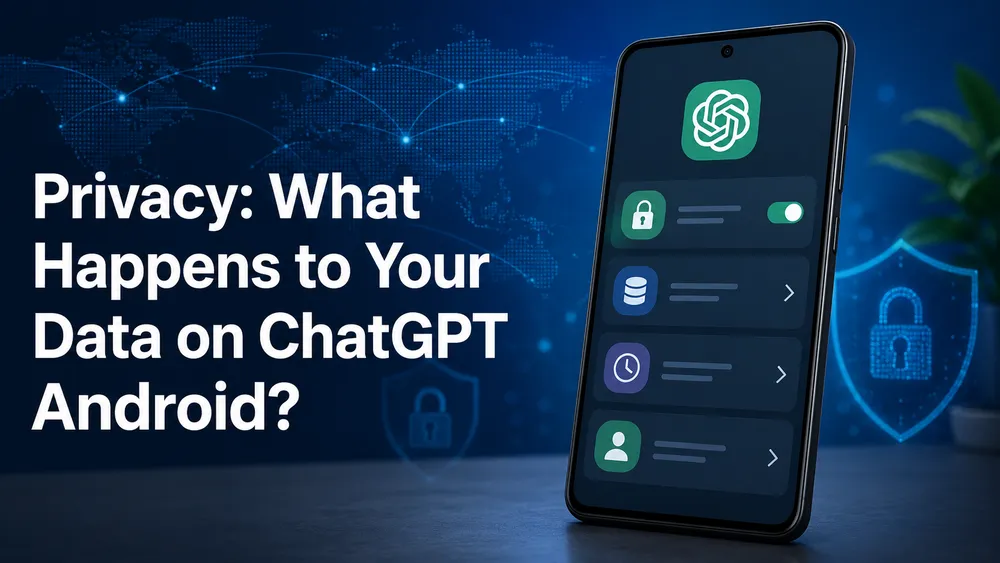
When you use ChatGPT on Android, you send messages, sometimes images, sometimes files, and sometimes personal information. You should therefore adopt good privacy habits from the start. OpenAI explains that content submitted to its consumer services may be used to improve model performance depending on the user’s settings, and that this may include prompts, responses, images, or files.
The first rule is simple : never share sensitive information unless it is necessary. Avoid passwords, credit card numbers, identity documents, medical records, confidential client data, internal contracts, or private information about another person.
ChatGPT can be very useful for rephrasing, explaining, or structuring information. But you do not have to give it the exact data. You can anonymize it.
Instead of writing :
“Here is the full file of my client John Smith, born on…, with his address and income.”
Write instead :
“Here is an anonymized situation : a client wants to compare two offers. Help me create a decision grid without using personal data.”
This method helps you keep the benefits of ChatGPT while reducing the risks.
Disable the use of conversations to improve models
OpenAI offers a setting called “Improve the model for everyone.” When this setting is disabled, conversations remain visible in your history, but OpenAI says they are not used to train ChatGPT.
On mobile, the path may vary depending on the app version, but the general logic is usually as follows :
- Open ChatGPT on Android.
- Open the side menu.
- Tap your profile or settings.
- Go to “Data Controls” or “Data Controls.”
- Disable the option related to model improvement.
After this change, check that the setting has been correctly applied to your account. OpenAI states that some data settings may sync with your account, which means that a choice made on mobile may also apply to your other connected devices.
Use temporary chats
Depending on the features available on your account, ChatGPT may offer temporary chats. They are useful when you want to ask a one-time question without keeping the thread in your usual history.
Use this type of conversation for :
- A one-time question.
- A request you do not want to find again later.
- An unimportant draft.
- A discussion you do not want to mix with your main projects.
Even with this type of feature, keep one rule of caution in mind : temporary does not mean you can share anything. For sensitive information, the best reflex is still not to send it or to anonymize it.
Delete a conversation
If you want to delete a conversation on Android, open the history, select the relevant discussion, then look for the delete option in the menu. The exact name may vary depending on the version : “Delete,” trash icon, or three-dot menu.
Deleting a conversation can help keep your history clean. It is also useful if you started an unnecessary exchange, created several tests, or no longer want to see a topic in the list.
For clearer organization, you can also adopt this method :
- Keep useful conversations.
- Rename important discussions.
- Delete tests.
- Create a new conversation for each major topic.
- Avoid very long threads that mix several projects.
What you should never share with ChatGPT
Even though ChatGPT is practical, you must remain careful with certain types of information. Do not share :
- Your passwords.
- Your verification codes.
- Your credit card numbers.
- Complete identity documents.
- Identifiable medical data.
- Confidential client information.
- Company secrets.
- Non-anonymized contracts.
- Sensitive legal documents without precautions.
- Personal data belonging to other people.
If you want help with a sensitive document, first remove names, addresses, numbers, amounts, identifiers, and anything that can identify a person or a company.
Troubleshooting : what should you do if ChatGPT is not working on Android ?
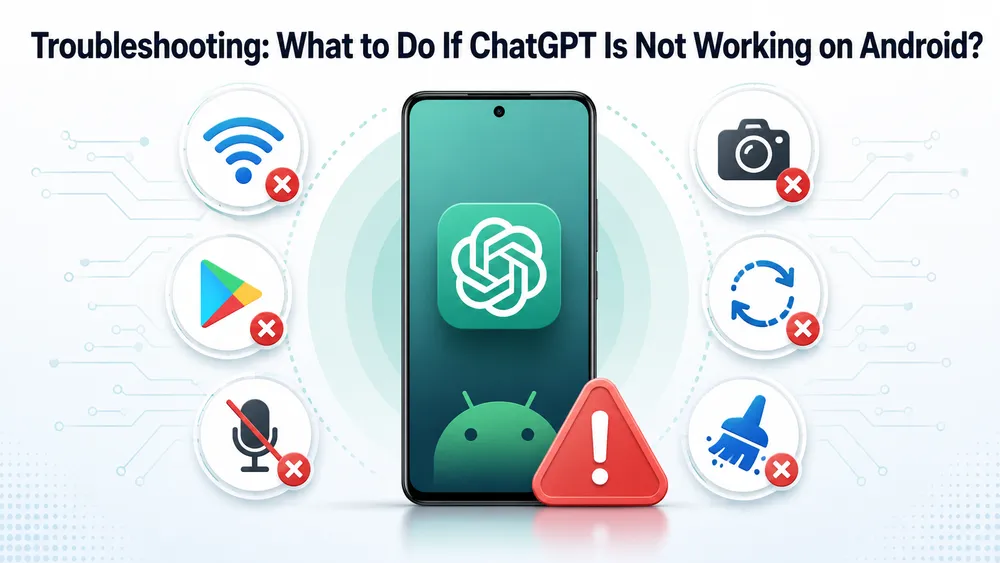
If ChatGPT is not working on Android, start by checking the simplest causes : internet connection, app update, Android version, Google Play status, microphone or camera permissions, then restarting the phone. OpenAI states that the Android app requires a device with Google Play and Android 7.0 or a more recent version.
In most cases, the issue comes from a local setting or an outdated app, not from ChatGPT itself. Here are the solutions to test in order.
The ChatGPT app does not appear in Google Play
If you cannot find ChatGPT in Google Play, first check your search. Type “openai chatgpt” rather than just “chatgpt.” OpenAI recommends this search to identify the official app published by OpenAI more easily.
Next, check your Android version. If your phone is running a version that is too old, the app may not appear or may not be compatible. Also check that your device has Google Play. Some Android phones without Google services may not offer the official app under the same conditions.
Try this :
- Update Google Play Store.
- Update Google Play Services.
- Clear the Play Store cache.
- Restart the phone.
- Check the Android version.
- Search for “OpenAI ChatGPT” instead of “ChatGPT.”
- Go through the official ChatGPT download page.
The official ChatGPT download page offers mobile access and mentions Android use, with the ability to chat on the go, use voice, and ask questions about photos.
The app does not open or closes by itself
If ChatGPT closes at launch, start with the usual actions :
- Restart your phone.
- Update the app.
- Check the available storage space.
- Clear the app cache.
- Uninstall and then reinstall the official app.
- Check that your internet connection is stable.
If the problem continues, test ChatGPT from a mobile browser by going to the official website. This helps determine whether the issue comes from the Android app or from your account.
If ChatGPT works in the browser but not in the app, the problem is probably related to the app, the cache, permissions, or the installed version. If ChatGPT does not work anywhere, it may be a problem with your account, connection, or a temporarily unavailable service.
Unable to sign in
A sign-in problem can come from an incorrect password, a different account, blocked authentication, a default browser issue, an unstable connection, or an outdated Android component.
First check that you are using the right sign-in method. If you created your account with Google, use “Continue with Google.” If you created your account with an email address, use the corresponding email. Many users think they have lost their account when they are simply signing in with another method.
To test :
- Check your email address.
- Reset the password if necessary.
- Temporarily disable a VPN if sign-in fails.
- Update Chrome.
- Update Google Play Store.
- Try another Wi-Fi connection or mobile data.
- Restart the phone.
If the error persists, try signing in from the official browser version. If the connection works on the web, reinstall the Android app.
The microphone is not working
If voice mode is not working, the problem often comes from permissions. Android may block microphone access if you did not allow it during the first launch.
- Open Android settings.
- Go to Apps.
- Select ChatGPT.
- Open Permissions.
- Allow the microphone.
- Relaunch the app.
Also check that the microphone works in another app, such as the voice recorder or WhatsApp. If the microphone does not work anywhere, the problem is not caused by ChatGPT.
The official voice mode allows you to talk with ChatGPT, practice languages, brainstorm ideas, and get answers without typing, according to OpenAI’s dedicated page.
The camera or images are not working
If you cannot send a photo or screenshot, check the permissions related to photos, videos, files, or camera. Depending on your Android version, permissions may be separated.
Check :
- Photo access permission.
- Camera access permission.
- File access permission.
- Internet connection.
- Updated app version.
- Feature availability on your account.
If you want to analyze a screenshot, you can also save it in your gallery, then add it from the app if the import option is available.
Answers are slow or incomplete
If ChatGPT responds slowly, several causes are possible : weak connection, high demand on the service, a prompt that is too long, a large file, a complex image, or a more advanced mode that requires more time.
Try these solutions :
- Switch from Wi-Fi to mobile data, or the opposite.
- Shorten your request.
- Divide a large document into several parts.
- Close unnecessary apps.
- Relaunch ChatGPT.
- Ask for an answer in several steps.
For example, instead of pasting a very long text and asking for a full analysis, start with :
“Read this text and give me only the 5 main ideas.”
Then ask :
“Now turn these ideas into a detailed outline.”
This method reduces the risk of a confused answer and improves the quality of the result.
ChatGPT Android or Gemini : which should you use on an Android phone ?
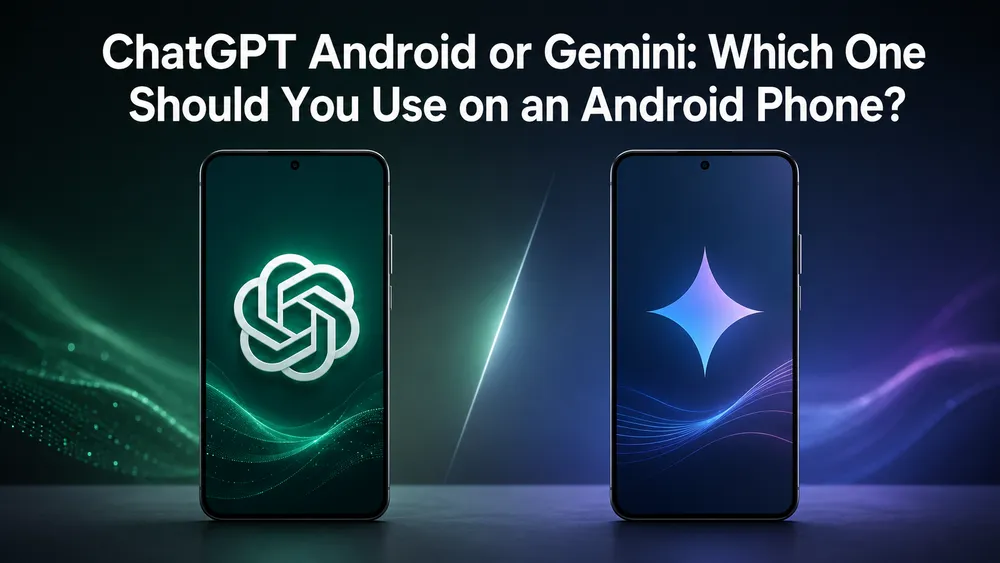
On Android, ChatGPT and Gemini can both serve as AI assistants, but they do not meet exactly the same need. ChatGPT is especially useful for chatting, writing, rephrasing, analyzing, creating ideas, working on documents, and getting structured help. Gemini may be interesting for users who are highly integrated into the Google ecosystem and native Android features.
The right choice therefore depends on your use.
Use ChatGPT if you want to :
- Write texts.
- Get clear explanations.
- Summarize documents.
- Create prompts.
- Analyze ideas.
- Prepare emails.
- Work on content.
- Chat in voice mode.
- Ask questions about images.
Use Gemini instead if you are looking for more direct integration with certain Google services or certain system features on your Android phone.
In practice, nothing forces you to choose only one assistant. You can use ChatGPT for thinking, writing, analysis, or learning, and Gemini for certain uses integrated into Android. The important thing is to know which tool best fits the task at hand.
For CritiquePlus, the most useful editorial angle is not to present ChatGPT as “better at everything,” but as a versatile AI assistant, very strong at turning a request into a structured answer.
Limitations of ChatGPT on Android
ChatGPT is powerful, but it is not perfect. It can misunderstand a request, produce an incomplete answer, invent a detail, lack context, or provide information that needs to be verified. On Android, these limitations are even more visible, because users often ask quick questions, sometimes without context.
The first limitation concerns accuracy. ChatGPT can write a convincing answer even when it is wrong. For an important decision, always verify the information with an official source, a professional, or a reliable document.
The second limitation concerns context. If you ask a question that is too vague, ChatGPT has to guess. A guessed answer is rarely optimal.
Vague question :
“Make me an outline.”
Clear question :
“Make me a 10-minute presentation outline about the benefits of ChatGPT for students, with an introduction, 3 sections, and a conclusion.”
The third limitation concerns personal data. ChatGPT does not need to know everything to help you. The more you anonymize, the better you protect your privacy.
The fourth limitation concerns available features. Not all accounts always see the same options at the same time. Some new features may be rolled out gradually. If a button or feature does not appear, it does not necessarily mean your phone has a problem.
The fifth limitation concerns sensitive uses. Avoid asking ChatGPT to replace a doctor, lawyer, financial advisor, security expert, or qualified professional. It can help you understand a topic, prepare questions, or summarize a document, but it should not be your only source for making a decision.
FAQ
How do you install ChatGPT on Android ?
To install ChatGPT on Android, open Google Play, search for “openai chatgpt,” then install the app published by OpenAI. OpenAI recommends checking the publisher to make sure you are downloading the official and secure app.
Which Android version is required to use ChatGPT ?
OpenAI states that the ChatGPT app for Android works on devices with Google Play running Android 7.0 or a more recent version. If your phone is older or does not have Google Play, the app may not be available.
Is ChatGPT Android free ?
Yes, the official app is free to download from Google Play. The official listing also states that the app syncs history across devices. However, some features or limits may depend on the plan used.
Can you use ChatGPT offline on Android ?
No, ChatGPT requires an internet connection to generate answers. If you do not have Wi-Fi or mobile data, the app will not be able to process your requests properly.
Does ChatGPT Android work with voice ?
Yes, ChatGPT offers a voice mode that allows you to talk with the assistant instead of typing. OpenAI presents voice mode as a way to practice languages, brainstorm ideas, or get quick hands-free answers.
Can you send a photo to ChatGPT on Android ?
Yes, depending on the features available on your account, you can ask questions about photos from the mobile app. The official ChatGPT download page explicitly mentions conversations on the go, voice, and questions about photos.
Why does ChatGPT not appear in the Play Store ?
Possible causes include a search that is too vague, an incompatible phone, no Google Play access, an Android version that is too old, or a Play Store issue. Search for “openai chatgpt,” check that the publisher is OpenAI, and confirm that your device uses Android 7.0 or a more recent version.
How do you delete a ChatGPT conversation on Android ?
Open the history, select the conversation, then use the delete menu. Depending on the app version, the option may appear as a three-dot menu, a trash icon, or a “Delete” button.
How do you prevent your conversations from being used to improve models ?
Open ChatGPT settings, go to data controls, then disable the “Improve the model for everyone” option. OpenAI states that conversations then remain in the history, but are not used to train ChatGPT.
Can ChatGPT replace Google Assistant or Gemini on Android ?
Not completely. ChatGPT is very useful for chatting, writing, explaining, analyzing, and generating ideas. Gemini or other Android assistants may be more integrated into certain phone features. The best choice therefore depends on your use.
Conclusion
Using ChatGPT on Android is simple : install the official app from Google Play, check that the publisher is OpenAI, sign in, then start with a clear request. To get good answers, give context, specify the expected format, and improve the result with follow-up requests.
The Android app is especially interesting because it makes ChatGPT available everywhere : on public transport, at work, in class, while traveling, in front of a document, or when facing a technical problem. You can type a question, dictate a prompt, use voice mode, send an image, or resume a conversation started on another device.
The right reflex is to use ChatGPT as an assistant, not as an absolute authority. It can help you understand, write, organize, translate, summarize, and think faster. But for important information, you should always verify the answers, protect your personal data, and avoid sharing sensitive information.
To get started properly, install the official app, test a few simple prompts, explore the privacy settings, then create one conversation per use : work, studies, travel, ideas, documents, or troubleshooting. With this method, ChatGPT quickly becomes a useful Android tool in everyday life, even for beginners.
